I accidentally deleted vacation photos from my Nikon camera SD card before backing them up, and I’m trying to find out if recovery is still possible. The card has important family and travel pictures on it, so I need help with the safest way to recover deleted photos from a Nikon camera SD card without making things worse.
I went through this with a Nikon card a while back, and I would not write the photos off yet. Deleted shots often come back, even after a quick format. What mattered in my case was not how the files vanished. It was whether new data got written over them.
First thing, stop using the SD card now. Don’t shoot more photos. Don’t record video. Don’t format it again. Every new file takes space, and your old NEF or JPEG files might be sitting in some of that same space.
If this was a quick format, your odds are still decent. If you ran a full format or some kind of secure wipe, recovery gets a lot uglier.
If you don’t have a backup, I’d go straight to recovery software. I’ve used Disk Drill for this, mostly because it picks up Nikon RAW formats like NEF and NRW along with JPEG, and the workflow is simple enough that you don’t spend an hour guessing.
What I did:
- Pulled the SD card out of the camera.
- Connected it to my computer with a card reader.
- Installed Disk Drill on the computer, not on the SD card.
- Picked the SD card in the app and hit Search for lost data.
- Ran Universal Scan. For deleted or formatted camera cards, this is usually the one I start with.
- Waited for the scan to finish, then checked the previews.
- Recovered the files to my computer, never back onto the same card.
One small thing people miss, if the RAW files preview fine during the scan, that’s usually a good sign. I’ve had cases where the names were gone and the folder tree was a mess, but the image data itself was still okay.
If you’re missing videos too, run Advanced Camera Recovery after the main scan. Some camera video files end up fragmented, and the standard pass doesn’t always catch them cleanly.
A couple annoyances are normal here.
Recovered RAW files often lose their original filenames. You might see generic names instead of the camera’s usual numbering. Annoying, yep, but not proof the files are bad.
Also, Windows Photos is not a great judge of Nikon RAW health. I’ve seen NEF files fail there and open fine elsewhere. So if a recovered NEF won’t open in the default app, try software with proper Nikon RAW support before calling it dead.
Before you scan, check the obvious backup spots too, because people forget this stuff all the time:
- your computer, if you copied the trip photos earlier
- SnapBridge
- any cloud sync folder
- an external drive from a past import
If the card does not show up at all, drops connection during scanning, or looks physically damaged, I’d stop messing with it. A failing card gets worse fast. That’s where a recovery shop starts making more sense, even if it stings.
So yes, recovery is still possible if the photos were deleted, disappeared after the trip, or got wiped by a quick format. Time matters here. The less you use the card, the better your shot at getting the files back.

Yes, it is still possible, if you stopped using the card fast enough.
I agree with @mikeappsreviewer on the big point, overwrite risk is what matters most. I do disagree on one part though. I would image the SD card first, if your software supports it, and scan the image instead of hammering the card with repeated rescans. Safer move, esp if the card is older or flaky.
A few Nikon-specific things to check.
- Look for hidden backup copies.
Some Nikon workflows leave photos in import folders you forgot about.
Check:
- Lightroom catalog import location
- Windows Pictures folder
- Nikon NX Studio import folder
- phone imports from SnapBridge
- cloud photo sync trash or deleted folder
-
Test the card with a different reader.
A bad reader causes fake “corruption” all the time. I’ve seen cards fail in one cheap USB reader and mount fine in another. -
If files come back with no names, sort by file signature.
NEF files often recover by header, not by original folder structure. Recovery software like Disk Drill is useful here because it detects Nikon RAW formats well, even when the file system is toast. -
Watch file sizes.
Recovered JPEGs under a few KB are junk. NEF files should look close to what your camera normally makes. If your Nikon usually shoots 20 to 30 MB RAWs and recovered files are 200 KB, those are busted. -
Recover to a hard drive, then verify in Nikon software.
Windows preview lies sometimes. NX Studio or Lightroom gives you a better answer on whether the NEFs are intact.
If you want a clean guide, this step by step SD card photo recovery guide covers the basic flow in plain english.
If the card asks to be formatted, do not click it. That trips people up al lthe time.

Yep, still possible. The big factor is not the delete itself, it’s whether the card has been reused since then. If you haven’t taken more photos, your chances are usually pretty decent.
I mostly agree with @mikeappsreviewer and @viajantedoceu, but I’m a little less optimistic when people say “quick format is fine.” Sometimes it is, sometimes it absolutely wrecks the folder structure and makes recovery messy as heck. You can still get the images back, but they may come back as generic files with weird names.
One thing I’d add that they didn’t really stress enough: check the camera itself. Some Nikon bodies with dual slots, internal cache behavior, or transfer apps can make people think files are gone when they actually exist somewhere else in the workflow. Also check if SnapBridge auto-sent smaller copies to your phone.
If the card is readable on a computer, recover it now, then worry about organizing later. Disk Drill is a solid option because it handles Nikon photo formats like NEF pretty well and it’s easy enough that you won’t be fumbling around while panicking. I’d recover everything to your computer first, even the ugly-looking files, then sort the keepers after.
Also, don’t judge recovered files too fast. A photo that won’t preview in Windows might still open in Lightroom, NX Studio, or another RAW-capable app. Seen that more than once.
If you want more opinions on best SD card recovery software recommendations for deleted photos, that thread has some useful comparisons too.
If the SD card disconnects, makes the reader freeze, or asks to be formatted every time, stop messing with it. That’s the point where DIY can make things worse tbh.
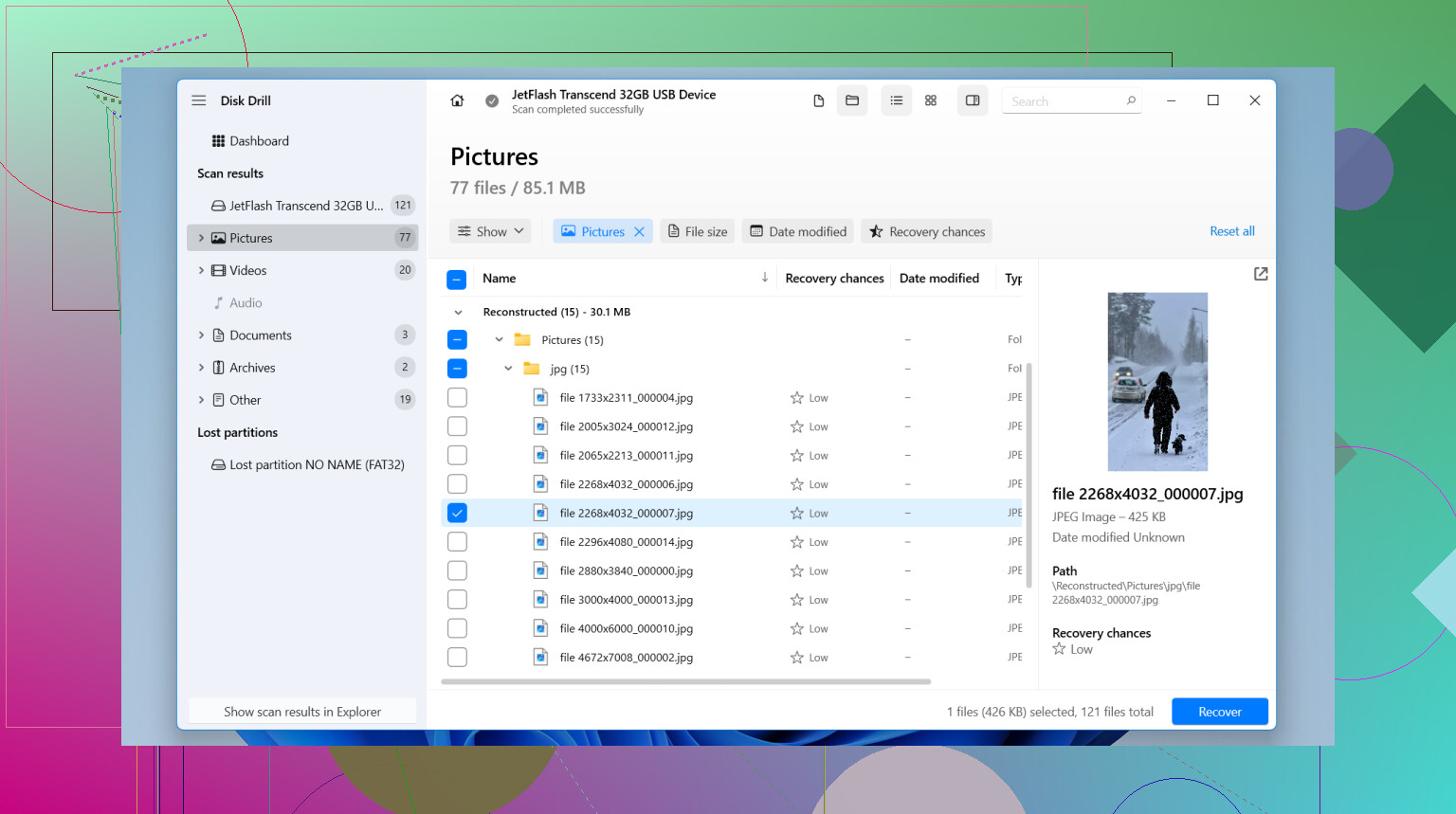
One extra angle beyond what @viajantedoceu, @himmelsjager, and @mikeappsreviewer covered: check whether the card is SDXC and formatted exFAT. A lot of recovery apps can find the photos, but some do a worse job rebuilding exFAT folder metadata, so you may recover the images but lose dates and names. That is not failure, just messy recovery.
I slightly disagree with the “scan everything repeatedly until something shows up” mindset people fall into. If the card is aging, every remount and rescan is another chance for it to glitch. One careful pass is smarter than ten hopeful ones.
Disk Drill is a reasonable pick here.
Pros:
- good support for Nikon formats like NEF plus JPEG
- simple preview system
- decent at card-based photo recovery even when folders are broken
Cons:
- recovered filenames can be generic
- deep scans can take a while
- full recovery usually means paying
One more practical tip: after recovery, compare EXIF timestamps. Even if names are gone, the timestamps let you rebuild the trip in order fast. Also compare recovered file counts against what the Nikon playback counter roughly showed before deletion. That helps spot silent misses.
If the card reads painfully slow, gets hot, or vanishes mid-read, skip DIY and go straight to a recovery lab. That usually means hardware trouble, not just deleted files.