My Seagate external hard drive suddenly stopped showing files after I connected it to my PC. The drive is detected, but I can’t access important photos and documents. I’m looking for reliable Seagate external hard drive recovery software recommendations before I risk making things worse.
First thing: don’t do anything else to the Seagate drive yet. If Windows says it’s empty, RAW, missing files, or wants to format it, that doesn’t automatically mean the files are gone. A lot of the time the file system is damaged, while the actual data is still sitting there.
Do not format it. Do not copy anything onto it. I’d also avoid repair tools like CHKDSK unless you already have another copy of the data. Anything that writes to the drive can make recovery harder by overwriting files that might still be recoverable.
Before trying software, check for obvious hardware trouble. Plug it in for a short moment and listen. If you hear clicking, scraping, grinding, repeated spin-up sounds, or anything that seems wrong, stop testing it. Mechanical drives can get worse fast once they start failing. In that case, look into Seagate’s Rescue Data Recovery Services first. Some Seagate Backup Plus drives came with Rescue coverage, so check the serial number on Seagate’s site before paying someone else.
If the drive sounds normal and Windows can still see it somewhere, even if File Explorer can’t open it, then it may just be logical damage. That includes stuff like:
- the drive not showing in File Explorer
- Windows asking you to format it
- the partition showing as RAW
- the drive appearing empty even though it shouldn’t be
For that kind of situation, recovery software is usually the next step. Disk Drill is one option worth looking at for Seagate external drives, especially if the partition disappeared, the drive became RAW, or it was unplugged without ejecting properly.
Install the recovery software somewhere else, like your internal drive or another external drive. Don’t install it on the Seagate drive you’re trying to recover from.
If the drive is acting slow, dropping out, or you’re not fully sure it’s healthy, make a byte-to-byte backup first. Disk Drill can create a full disk image, which is safer because you scan the image instead of hammering the original drive over and over.
Also try a different USB cable and another USB port if the drive keeps appearing and disappearing. Portable external drives can be weirdly picky about cables, and a bad cable can look like a dying drive.
Once the drive or disk image is detected, run the scan. When results show up, preview a few files you actually care about before recovering everything. If the previews open correctly, that’s usually a good sign.
When you recover the files, save them to a different drive. Do not save recovered data back onto the same Seagate drive, because that can overwrite other files that haven’t been recovered yet.
If the drive doesn’t show in File Explorer, check Disk Management. If it appears there with the right size, like 2TB or 5TB, recovery software may still be able to read it even though Windows can’t browse it normally.
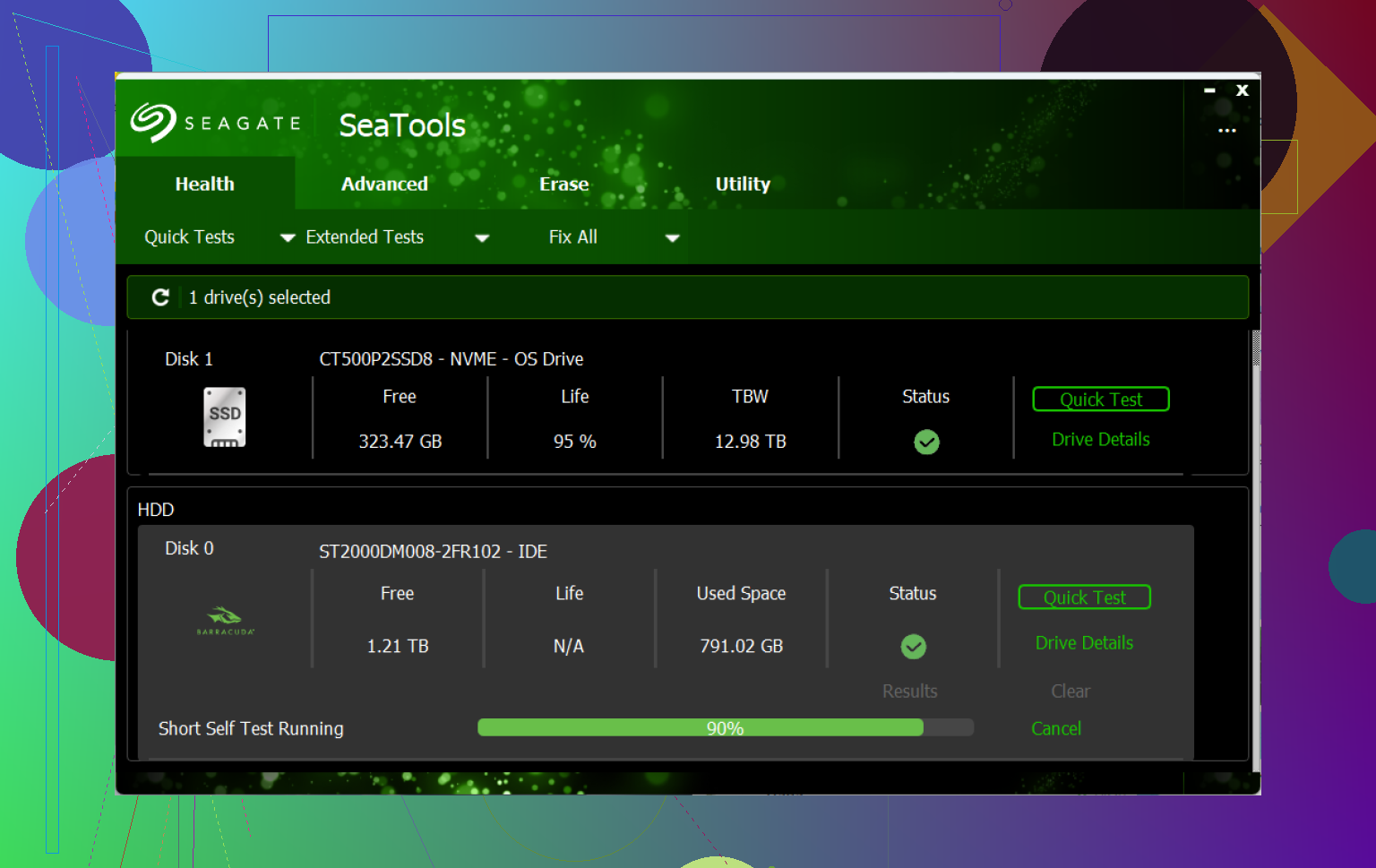
After you get your files back, don’t just assume the drive is fine. Download Seagate SeaTools and run the Long Generic Test. If it reports errors, replace the drive. If it passes, you can format it and reuse it, but I’d still keep another backup from now on since the drive has already acted suspicious.
Large drives can take a long time to scan, sometimes many hours. If it powers on, sounds normal, and shows the correct capacity, there’s still a decent chance the files can be recovered.
Don’t click “Initialize disk” in Disk Management if Windows pops that up. That’s a different trap from formatting, and people hit it because it sounds harmless. I agree with @mikeappsreviewer about scanning only if the drive sounds normal, but before buying anything, check whether the partition still shows with the correct size and file system. If it says RAW or unallocated, use recovery software like Disk Drill only to scan and recover to another drive, not to “fix” the Seagate in place. If it shows the wrong capacity, like a 4TB drive showing as 32GB or 0 bytes, I’d stop messing with software and treat it as a hardware or enclosure problem instead.
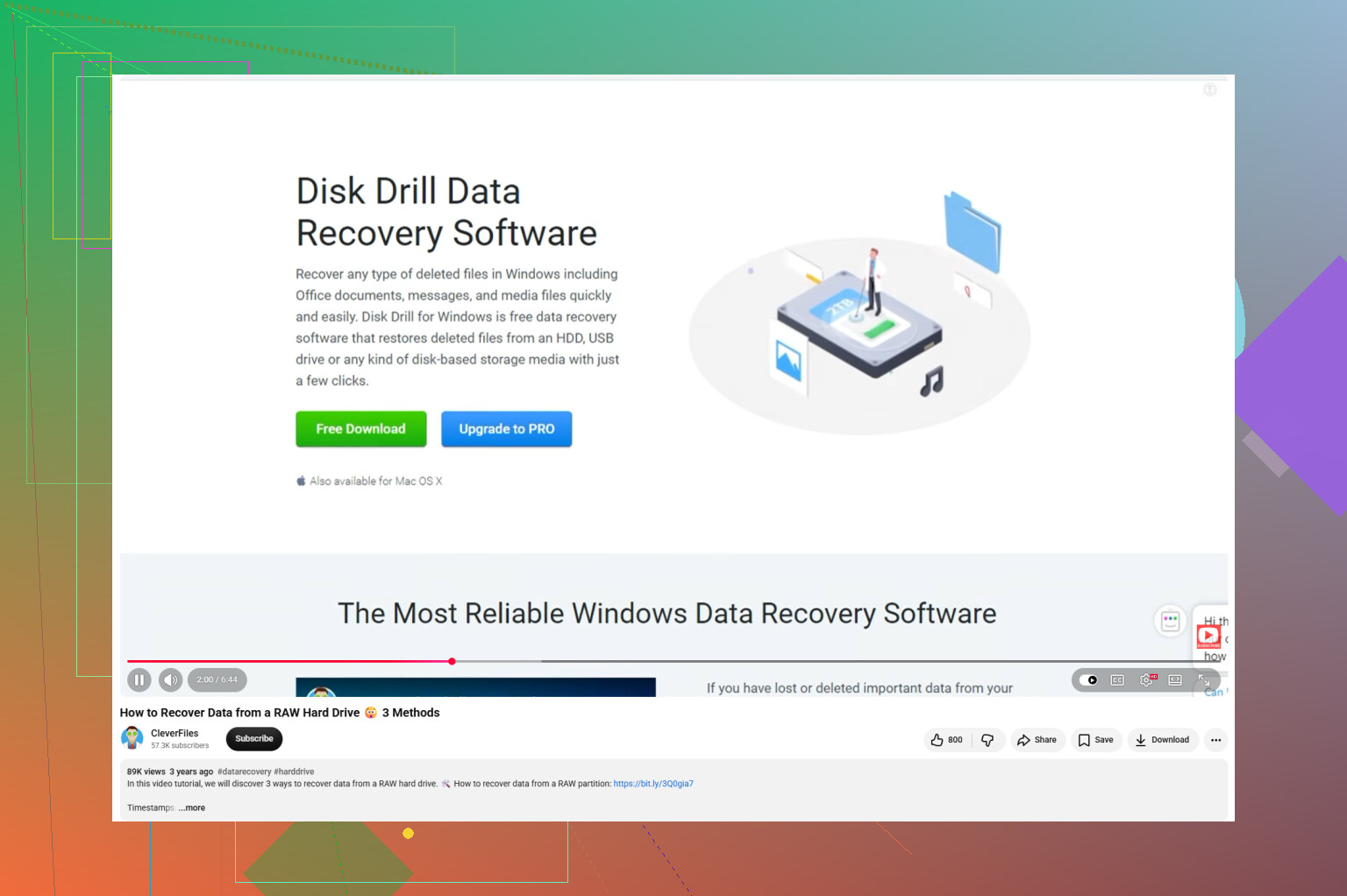
Don’t let Windows “repair” the drive when you plug it in, even if the prompt looks routine. A small thing people miss is to check whether the files are actually hidden or the drive letter changed before doing a full recovery scan: open Disk Management, confirm the partition size, then in File Explorer enable hidden items and try searching the drive for a known file name like .jpg or .docx. If nothing shows and the space used still looks like your data is there, then recovery software makes sense. Disk Drill is fine for scanning, but treat the preview as the test before paying or recovering a huge batch. If the preview can’t open your important photos/documents, don’t keep rescanning forever. That’s usually the point where cloning the drive or using a recovery shop is the safer move.
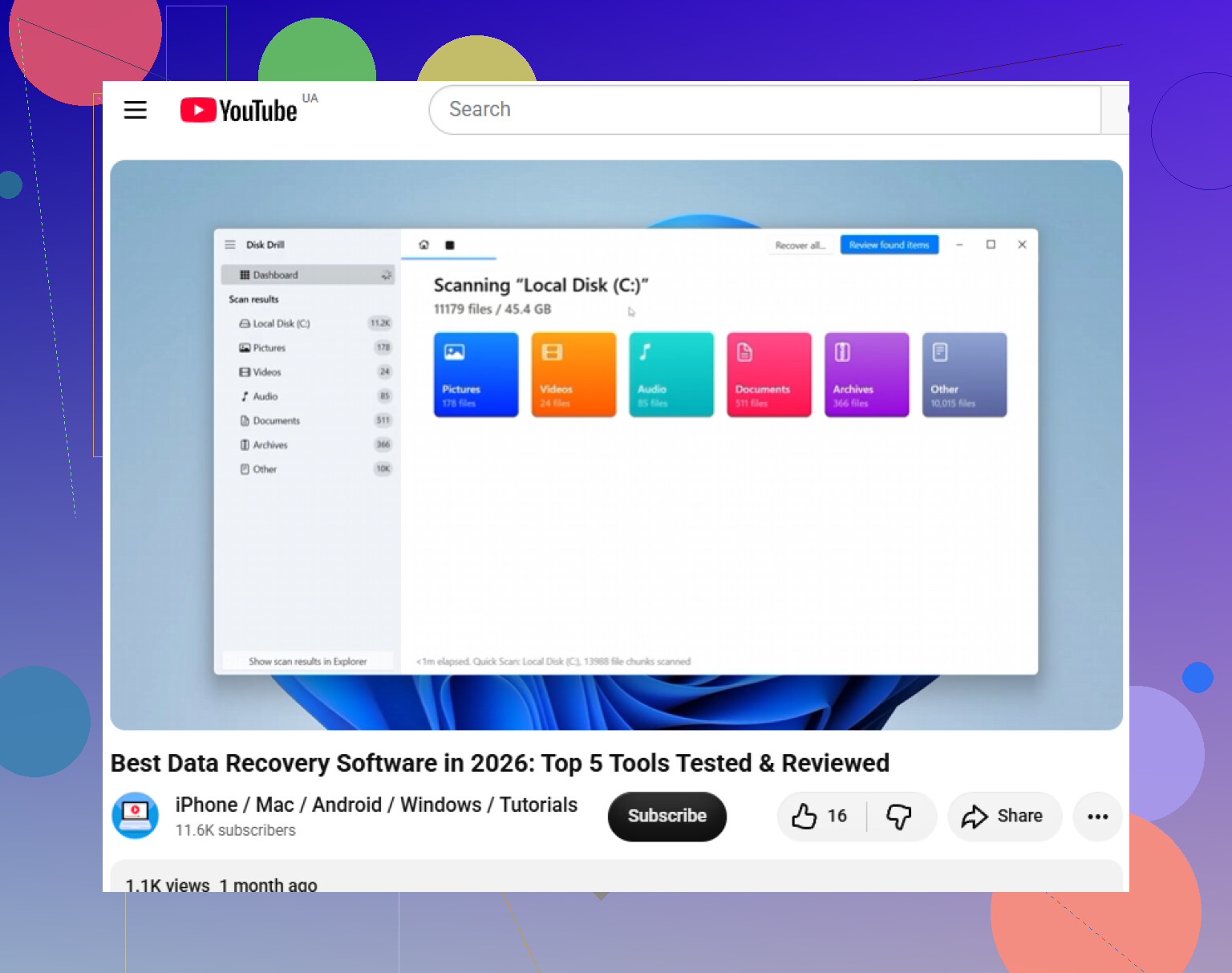
If the drive shows up only sometimes, I’d suspect the USB bridge or cable before blaming the file system. Try a different cable/port first, but don’t keep power-cycling it all night. Disk Drill or any recovery app is only worth running once the drive stays connected long enough to scan safely.