I tried the usual ways to clear iPhone storage without deleting photos, apps, or messages, but my storage is still full and my phone is slowing down. I need help figuring out what’s taking up space and the best way to free up iPhone storage safely without losing anything important.
I ran into the same mess on a 128 GB iPhone. Mine was sitting at 127.9 GB used, and the phone turned useless fast. Apps froze. Camera failed at the worst time. Even opening Photos felt slow.
What helped me was realizing the space was not all stuff I cared about. A lot of it was junk iOS and apps had piled up over time, cache files, logs, old attachments, leftover temp data.
Start here.
Go to Settings > General > iPhone Storage.
Wait for it to finish loading. On a packed phone, it takes a bit. Look at Apple’s recommendations first. If you see Offload Unused Apps, I’d do it. It removes the app itself but keeps your data, settings, and sign-in info. The icon stays there with the cloud badge, so if you need it later, you tap once and it comes back. I found this safer than deleting apps outright.
If your iCloud storage is full too, photo optimization won’t help much anymore. When iCloud has no free room, your phone keeps more full-res files locally. So next, scroll down to Messages in the storage list. This one surprised me. Group chats were hiding a pile of old videos, images, and random attachments. Open Review Large Attachments and clear the fat stuff first. I found year-old clips in there eating hundreds of MB each.
The slowdown part was mostly app cache on my phone.
TikTok, Instagram, Spotify, and apps like those keep a lot of temporary data. iOS still gives you no simple cache clear button for most apps, which is annoying. My fix was crude but worked. Delete the app, reinstall it, sign back in. On TikTok alone, I got back around 3 GB. Nothing important was gone, only the junk the app had stored.
If the number still barely moves, check your photo library with a harsher eye. Similar shots, bursts, and Live Photos take more room than people think. I wasted time sorting them by hand and got tired of it fast.
I ended up trying Clever Cleaner. I’m usually suspicious of cleaner apps because most of them are ad farms or lock useful stuff behind a paywall. This one felt different when I used it. No ads. No subscription wall popping up every 10 seconds.
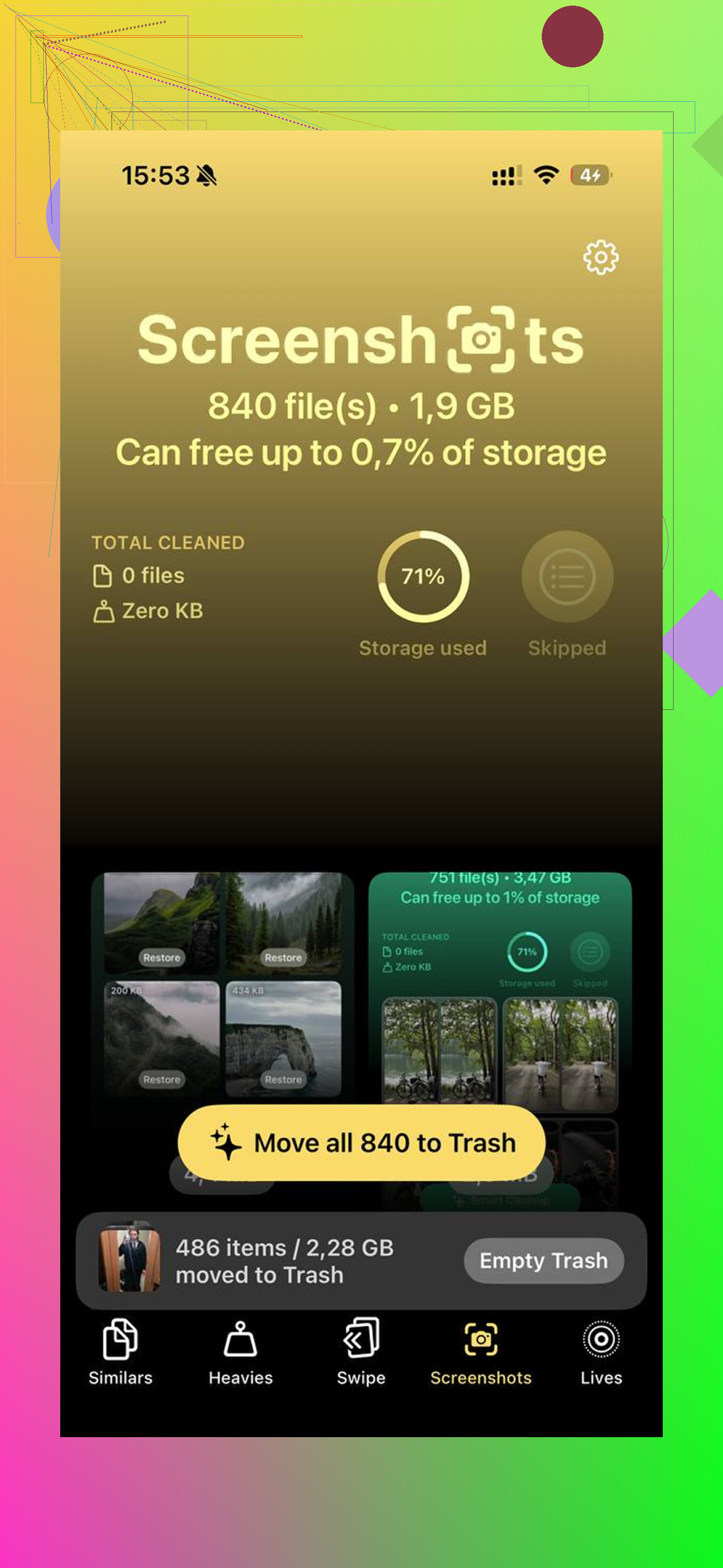
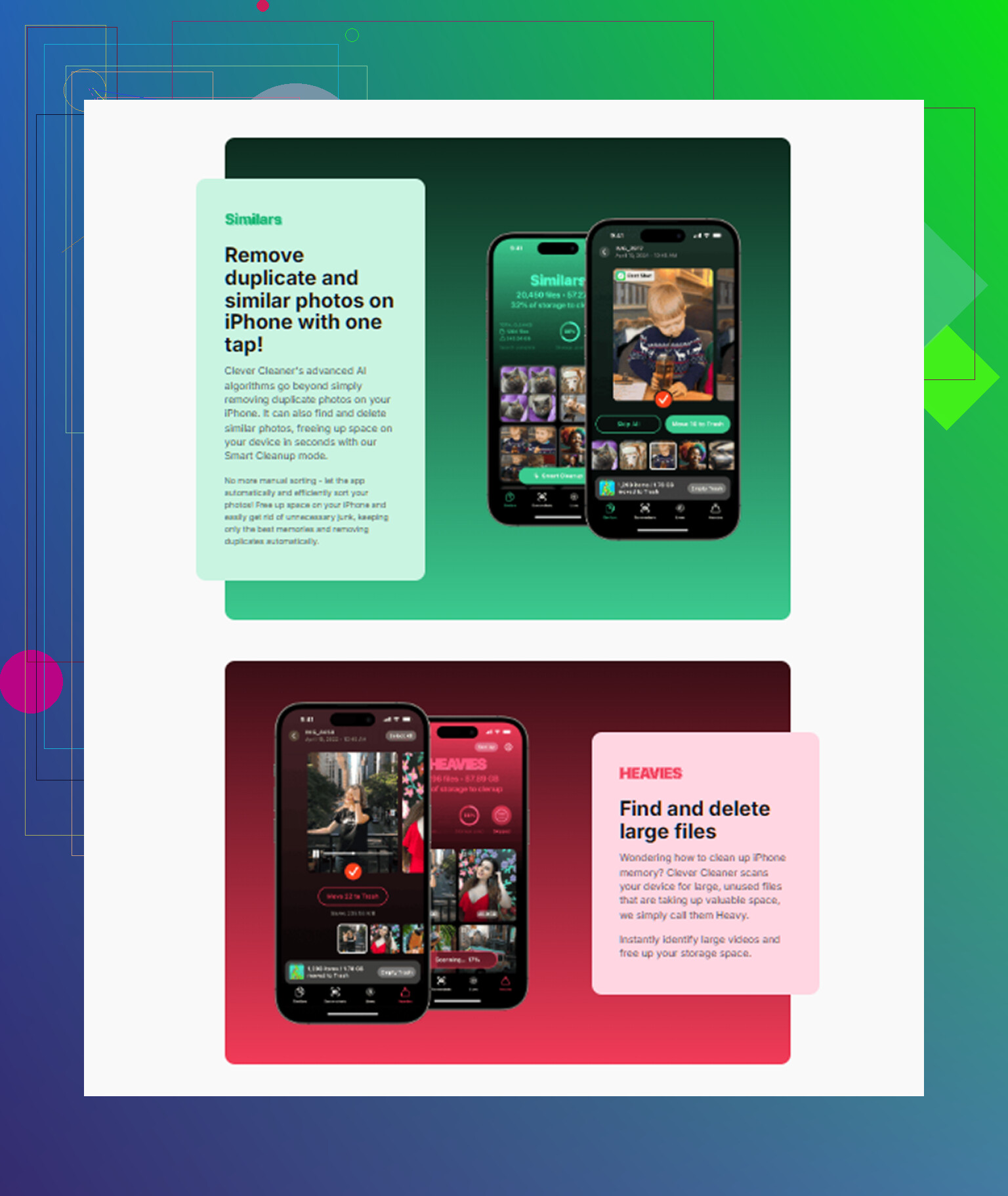
The part I used most was Similars. It grouped near-duplicate photos, not only exact copies. Good for those moments where you took eight shots of the same thing and only one was worth keeping. It picked a best shot, then I removed the rest. I also liked the Heavies section because Apple Photos still makes it weirdly hard to sort by file size. That view showed me the biggest videos first, so I could cut the worst offenders before touching anything else.
The privacy side mattered to me too. From what I saw, it processes on the device, not by uploading your library somewhere else. I was also happy it had a way to convert Live Photos into stills, so you keep the image and lose the attached motion clip.
One step people forget after a cleanup, empty Recently Deleted.
Photos you removed stay there for 30 days and still count against storage until you wipe them for good. Go to Photos > Albums > Recently Deleted, then delete everything in there. I missed this the first time and thought my phone was lying to me.
After I got usage down to around 85 percent, the lag stopped. The phone felt normal again. iPhones seem to behave better when they have some free room left, around 10 to 15 percent from what I noticed. If the storage number still looks off after cleaning, restart the phone. Mine needed a reboot before the free space updated properly.
So yeah, I’d stop deleting random photos one by one. Check storage recommendations, clear message attachments, reinstall the worst cache-heavy apps, clean up similar photos and big videos, then empty Recently Deleted. That got my phone usable agian without wiping the stuff I cared about.
If nothing changed after the usual cleanup, look at System Data. That category gets bloated from logs, Safari cache, update files, Siri voices, and streaming temp files. Apple hides it, which is annoyng.
What I’d try, in this order.
-
Safari.
Settings > Safari > Clear History and Website Data.
Then Advanced > Website Data > Remove All Website Data. -
Old iOS update files.
Settings > General > iPhone Storage.
If you see an iOS update listed, delete it. -
Mail cache.
If Apple Mail is huge, remove the mail account from the phone, restart, add it back. I’ve seen this free 1 to 5 GB. -
Files app.
Check On My iPhone and Downloads. People forget ZIPs, PDFs, and video edits sit there forever. -
Voice memos, GarageBand, Podcasts, TV downloads.
These are common space hogs and easy to miss. -
Hard restart, then rescan storage.
Storage figures get stuck sometmes.
I partly disagree with @mikeappsreviewer on mass reinstalling apps first. It works, but it’s a pain, and some apps keep drafts or offline data you might care about.
If Photos is still the main issue, use Clever Cleaner to scan for large videos, duplicates, and similar shots faster than Apple’s tools. Also check this Clever Cleaner iPhone storage cleanup demo.
Last step if System Data stays absurd, back up the phone, then do an encrypted backup restore through a computer. That often shrinks System Data more than anything else. It’s the least fun fix, but it works.
If the usual cleanup didn’t move the needle, I’d stop focusing only on “storage” and start checking performance killers too. Sometimes the phone feels full because indexing, background photo analysis, or a broken sync process is chewing resources, not just space.
A couple things I’d try that @mikeappsreviewer and @vrijheidsvogel didn’t really lean on:
- Check battery health. If it’s under 80%, the slowdown may not be storage alone.
- Turn off Background App Refresh for junky apps you barely use.
- Disable automatic downloads in App Store, Music, and Podcasts. Those can silently refill space.
- In Photos, see if Shared Library or duplicated media from editing apps is creating hidden bloat.
- If WhatsApp or Telegram is installed, check their in-app storage managers. Those apps hoard media like crazy and iPhone Storage does not always show it clearly.
I slightly disagree with the “just reinstall a bunch of apps” route. It works, sure, but it can be anoying if you’ve got offline files or app-specific settings you forgot about.
If Photos is the big offender and you want to free up space without randomly deleting stuff, Clever Cleaner is probly the fastest route. It’s useful for similar shots, large videos, and duplicate clutter that Apple still makes weirdly hard to review. This guide on the best AI cleaner app for iPhone storage cleanup is worth a skim too.
Also check whether Photos is stuck syncing. Settings > your name > iCloud > Photos. A stalled sync can make storage reporting all wonky. If that’s happening, plug into Wi-Fi and power for a while and let it finish. Sounds dumb, but I’ve seen that fix it.