I noticed the Applications section on my iPhone is taking up a lot of storage, but I’m not sure what files or data are included there. I’m trying to free up space and need help understanding what counts as Applications storage, why it grew so much, and what I can safely remove without causing problems.
Why iPhone “Applications” Storage Looks Wrong
I hit this on my own phone, and it drove me nuts for a couple days. I’d add up the apps I could see, a few at 600 MB, one or two around 1 GB, nothing wild. Then the storage graph said Applications was eating 50 GB. Looked fake.
It isn’t fake. iOS groups more stuff into Applications than the label suggests.
What sits inside “Applications”
When you open Settings > General > iPhone Storage, the app total usually includes a few separate buckets:
- The app itself. The binary you installed from the App Store.
- Support files. Language packs, bundled resources, downloaded components.
- Your app data. Logins, saved settings, local files, session info.
- Cache. Temporary junk apps keep around so they open faster or load content without pulling it again.
From what I saw, cache was the big one. Social apps were the worst. Telegram, Instagram, TikTok, stuff like that. They kept piling up data in the background, and the top storage bar counted it even when the per-app view didn’t make it obvious.
Why the numbers don’t match
This part feels sloppy in iOS. On one screen, some app data shows as Documents & Data. On another, chunks of it get rolled into the big Applications number. After an iOS update, it gets even messier. The phone re-indexes storage, and for a while old temp files, update leftovers, and stale cache seem to get lumped into the wrong category.
I saw this right after an update on my iPhone 13. Storage looked inflated, apps started hanging, and the camera took forever to open. It felt like the phone had sand in the gears.
Why your iPhone slows down when storage is full
Mine got sluggish before I understood what was happening. Touch input felt delayed. A few apps crashed for no clear reason. Photos took longer to save.
Low free space hits performance harder than people think. iOS needs room for temporary system files. If your storage is packed, the phone has less working room for background tasks and memory management. You feel it fast.
Stuff I tried first
I went through the usual cleanup routine.
- Offloaded unused apps
- Deleted and reinstalled a few big apps
- Removed downloaded media inside some apps
- Restarted the phone and waited for storage to recalculate
Some of it helped. Not a ton. Offloading cleared the app itself but kept the data, so the gain was smaller than I expected. Reinstalling worked better for apps with bloated cache, though doing it one by one was annoying.
What found the real storage hogs
The part I missed was this: a lot of my space wasn’t from apps at all, at least not in the way I assumed. It was old media. Screen recordings. Big videos. Duplicate photos. Random junk sitting in Photos while iOS made the Applications bar look guilty.
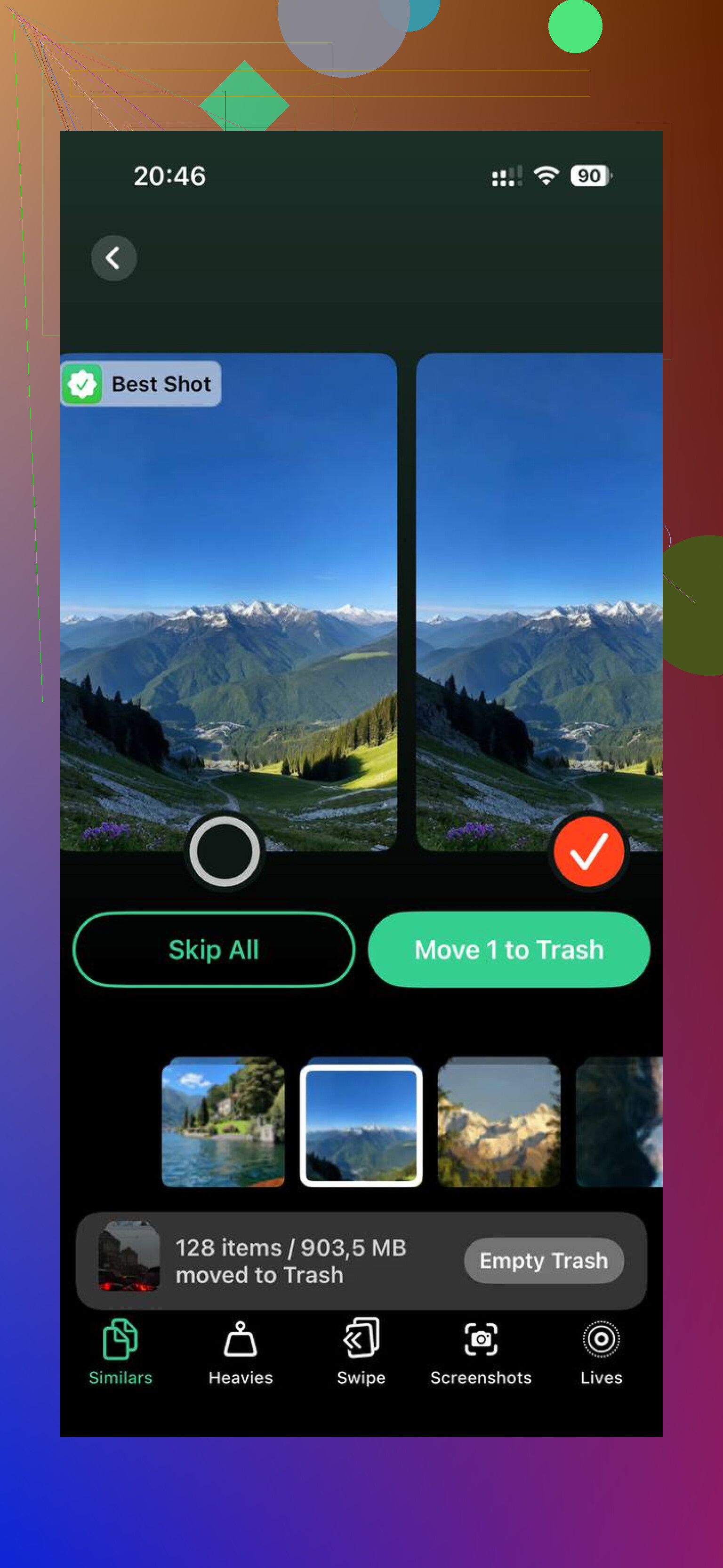
A friend pointed me to Clever Cleaner. I don’t trust cleanup apps much, so I expected nonsense. Still tried it.
It was useful for two reasons.
First, it sorted media by file size. That made the problem obvious fast. I found old 4K clips and screen recordings I forgot existed. A few of those were bigger than entire apps.
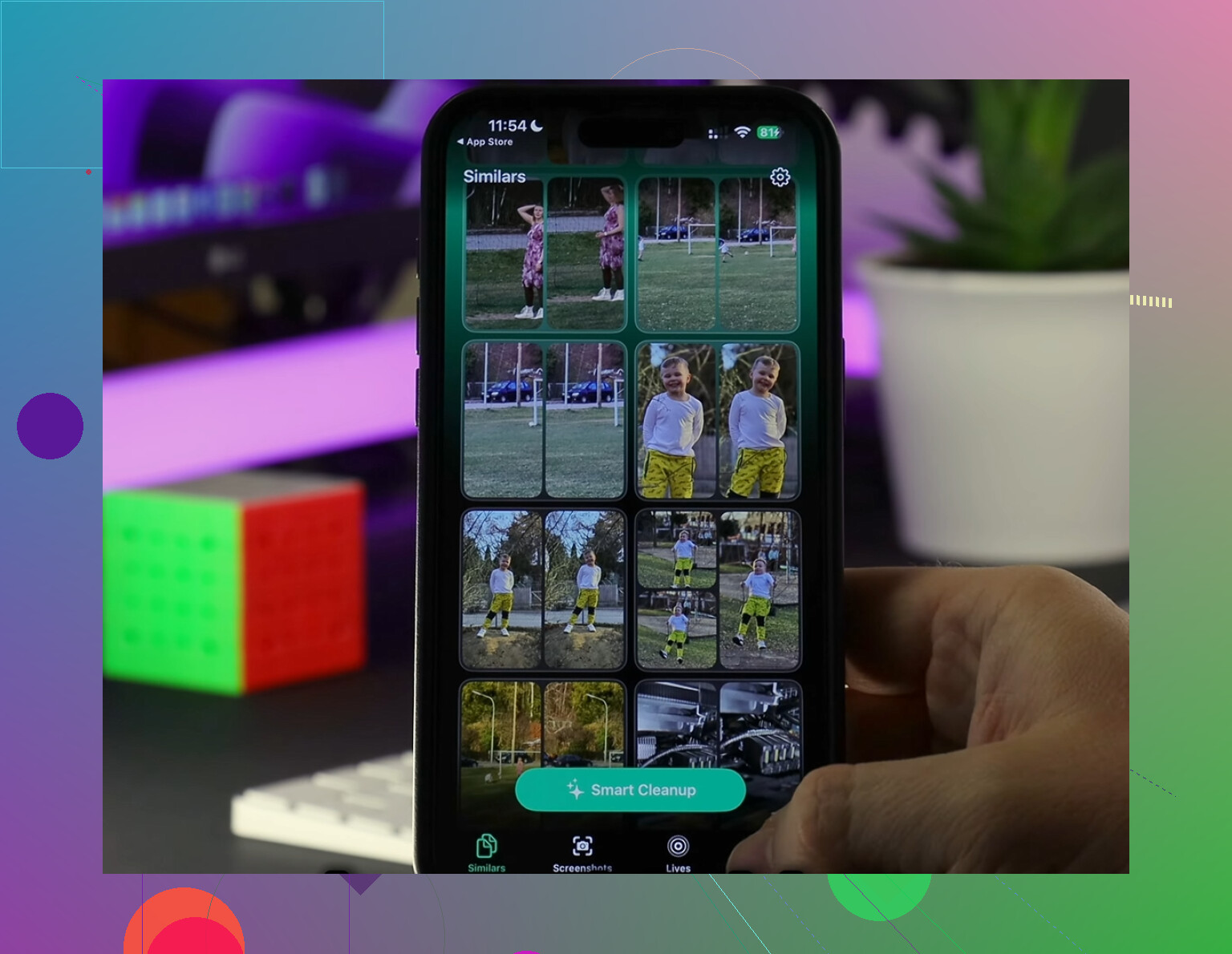
Second, the duplicate and similar photo scan saved time. I had clusters of near-identical shots, same cat, same sunset, same receipt, same blurry test photo. Seeing exact sizes next to them made deleting easier.
One thing I liked, it worked on-device, so it wasn’t shipping my photo library off somewhere else.
What fixed it for me
I cleared around 20 GB between videos, screenshots, duplicate photos, and cached app junk. After that, the storage graph settled down and the Applications section stopped looking absurd. More important, the phone stopped dragging.
If your iPhone says Applications is huge, don’t assume the number only reflects installed apps. It often includes cache, support files, leftover update data, and app-related junk iOS doesn’t show cleanly.
What I’d do in order
If your phone is close to full, I’d go like this:
- Open iPhone Storage and look for the worst offenders.
- Check streaming and messaging apps first.
- Delete and reinstall the bloated ones if needed.
- Clear downloaded media inside apps.
- Hunt for large videos and screen recordings in Photos.
- Remove duplicate or near-duplicate photos.
- Leave some free space after cleanup so iOS has room to work.
That was the difference for me. Once I got out of the red, the phone felt normal again. Not magic. It was storage.
“Applications” on iPhone usually means more than the app file.
It often includes:
- The app bundle itself.
- App data stored on your phone.
- Offline downloads inside apps, Spotify songs, Netflix episodes, podcast files.
- App caches, social apps are bad for this.
- App extensions, widgets, sticker packs, watch app data.
- Leftover files from app updates or failed syncs.
One place I disagree with @mikeappsreviewer. Photos and videos usually land in Photos, not Applications. iOS storage reporting gets messy, sure, but if Applications is huge, I’d first suspect messaging, streaming, browser, or social apps before blaming your camera roll.
Easy way to verify:
Settings > General > iPhone Storage.
Tap a big app.
Compare App Size vs Documents & Data.
If Documents & Data is massive, the app is holding your space hostage.
Best targets:
- WhatsApp, Telegram, Messages
- TikTok, Instagram, Facebook
- Spotify, YouTube, Netflix
- Safari
Safari alone stores website data, downloads, and cache. People miss taht one.
If you want faster cleanup, Clever Cleaner helps spot large media and duplicate pics. Also worth reading this review of Clever Cleaner on iPhone from Fossbytes, see how Fossbytes tested Clever Cleaner for iPhone storage cleanup.
Short version, “Applications” = apps plus the junk they keep. iOS labels it kinda badly, tbh.
“Applications” is basically Apple’s lazy catch-all for app-related storage, not just the app files themselves.
What usually counts there:
- the installed app
- in-app databases and saved files
- downloaded stuff inside apps, like Netflix episodes or Spotify music
- message attachments stored by chat apps
- browser cache, cookies, website data
- app extensions, stickers, widgets, Watch companion data
- temp/update leftovers that iOS sometimes reports kinda weirdly
I’d slightly disagree with @mikeappsreviewer on one part: Photos usually stays under Photos/System Data, not Applications, unless some media is embedded inside apps like Messages or WhatsApp. @sternenwanderer is closer on that bit.
If you want to see what’s really in there, go app by app in iPhone Storage and look at:
- App Size
- Documents & Data
That split tells the story prety fast. If Documents & Data is huge, that app is the problem.
Also, Safari gets ignored way too often. Website data can get stupidly big.
If you want a faster way to spot media clutter too, Clever Cleaner is actually useful for finding giant videos, duplicates, and similar pics that are eating space outside the obvious apps. There’s also a solid Clever Cleaner iPhone storage cleanup video review if you want to see how it works before installing anything.
Short version: Applications = apps plus their baggage. Lots of baggage, lol.
“Applications” is basically Apple’s catch-all for anything living inside an app sandbox, not just the app download itself. @sternenwanderer and @kakeru are right on the app-data side. I’d push back a bit on @mikeappsreviewer though, because actual Camera Roll items normally stay categorized outside Applications unless they’re duplicated inside apps like Messages, WhatsApp, or editors.
What can land there:
- app binaries
- local databases
- cached images/video/audio
- offline downloads
- message attachments stored by apps
- Safari website data
- extensions, widgets, watch companion files
- temporary install/update leftovers
One thing people miss: some apps report storage badly. iOS may lag behind reality until after a reboot or a day of reindexing. So the number is not always clean accounting.
If you want a quicker media audit, Clever Cleaner can help.
Pros:
- easy to spot large videos and duplicates
- useful when Photos clutter is part of the overall storage problem
- simple interface
Cons:
- won’t magically clear every app cache
- less useful if your storage issue is mostly messaging or streaming app data
- cleanup apps in general still need manual review
So, Applications means apps plus their baggage, not just the icon you installed.