My iPhone storage is almost full, and a big chunk is listed as Media, but I can’t tell exactly what it includes or what’s safe to delete. I’ve already removed photos, videos, and apps, but the Media category still takes up a lot of space. I need help understanding what iPhone Media storage means and whether there’s a free tool or method to clear it properly without losing anything important.
Seeing the iPhone storage bar say Media is taking some huge chunk of space, while giving you no clean way to inspect it, is one of the dumbest parts of iOS. I ran into this more than once. Space kept dropping, I knew I was not shooting hours of video every day, and Settings still gave me a big blob with no detail.
What sits inside ‘Media’
This category pulls in more stuff than most people expect. Offline songs from Apple Music or Spotify, downloaded podcast episodes, movies from the TV app, voice memos, old custom ringtones, all of it gets tossed into the same pile.
On newer iOS builds, you might also notice Synced Media. That usually means files moved over from a Mac or PC through iTunes or Finder. Old MP3s, home videos, audiobook files, random media you copied years ago and forgot. Apple changed how storage gets labeled, so instead of showing these under separate apps, it bunches them together under Media or Synced Media. If your storage looked normal before and then suddenly jumped, I saw this happen after an update.
Streaming apps add to the mess too. YouTube saves stuff with Smart Downloads. Podcast apps grab fresh episodes in the background. A lot of apps keep artwork, previews, and thumbnails cached on the phone. It adds up. Slowly, then all at once.
Why Settings does not help much
The built in storage page shows totals, not the stuff causing them. You might see 40GB or 50GB under Media and still have no clue what file is eating 6GB by itself. Apple leaves you with the slow method, open every app one by one and poke around inside Downloads or Offline items.
That gets old fast. And even then, many apps only show a total, not a list sorted by size. So you’re left guessing. I had one case where the problem was a few forgotten videos. Another time it was lots of smaller downloads spread across several apps. Settings gave me nothing useful in either case.
What worked better for me
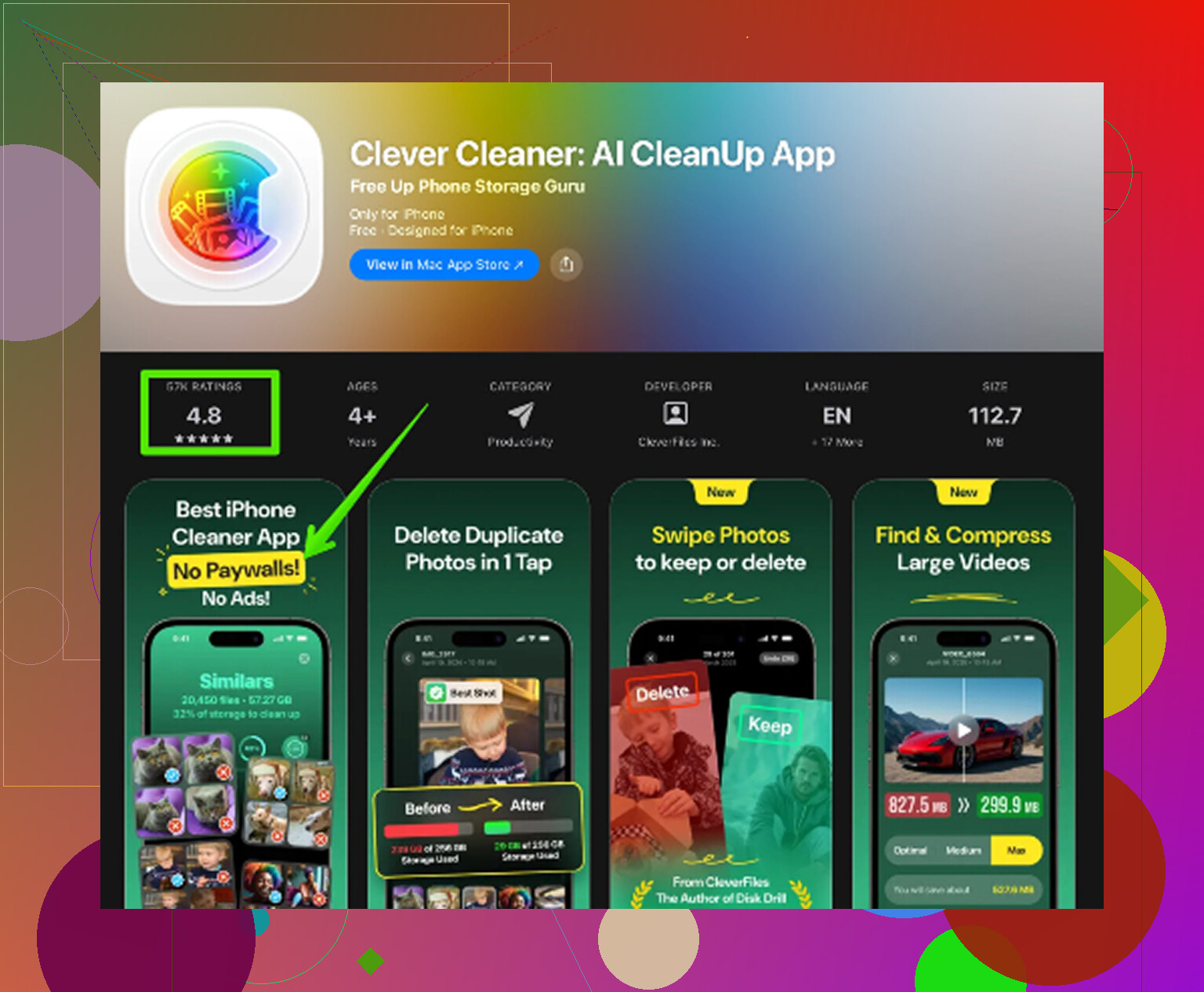
I tried the usual cleanup routine first. Offload apps. Clear Safari data. Delete message attachments. Barely moved the needle. Then I ended up using Clever Cleaner.
What stood out to me first was simple. It was free, no ads, no paywall popping up the second I tried to remove something, no fake free setup leading into a subscription screen. On iPhone cleanup apps, that is weirdly uncommon.
The part Settings misses is file visibility. This app scans your library and shows the large stuff in a way Apple does not.
How I used it
- Go to Heavies
This was the big one. It lists large videos and files from biggest to smallest, with file size shown right there. I found old screen recordings in 4K I had forgotten existed. A few of them were several gigabytes each. Once I saw the numbers, deleting them was easy.
- Check Similars
This groups near duplicate photos. Burst shots, five versions of the same pic, tiny angle changes, the usual camera roll junk. I kept the one I wanted and dumped the rest in one pass. Way faster than scrubbing through thousands of photos manually.
- Open Screenshots
Screenshots pile up like dust. Delivery confirmations, parking spot pics, login codes, memes you stopped caring about a week later. This section keeps them separate, with sizes visible, so you do not have to risk deleting regular photos while cleaning.
- Processing stays on the phone
This mattered to me more than I expected. If your library has private stuff, banking screenshots, ID photos, family videos, you probably do not want them shipped off somewhere for analysis. This one keeps the scan on device.
A few easy checks before you do a full cleanup
Open YouTube, Netflix, Spotify, and any podcast app you use. Look for offline downloads first. Those are often the biggest storage hogs.
Then check message retention. Go to Settings > Messages > Keep Messages and switch it to 30 Days or 1 Year if you do not need endless message history. Video attachments sit there forever otherwise.
The step people miss
Deleting files is only half the job. On iPhone, removed photos and videos go into Recently Deleted and stay there for up to 30 days. They still count against storage until you empty it.
So after cleaning, go to Photos > Albums > Recently Deleted > Delete All.
That is the part where the storage comes back. Before I learned this, I thought cleanup apps were broken. Nope. I had simply left the trash full.
“Media” on iPhone storage is Apple’s junk drawer label. It often includes downloaded music, podcast episodes, TV app files, voice memos, GarageBand audio, synced files from Finder or old iTunes, and app-level media caches. Sometimes iOS re-labels stuff after an update, so the number looks wrong for a while. Annoying, yep.
I slightly disagree with @mikeappsreviewer on one part. Settings is bad, but it is not useless. Go to Settings > General > iPhone Storage and wait a minute. The list often re-calculates. Then open apps like Music, TV, Podcasts, Spotify, YouTube, Netflix, Files, and Voice Memos one by one. Those are common hogs.
Stuff safe to delete:
- Offline downloads in streaming apps.
- Old voice memos.
- Files in the Files app, especially Downloads.
- Synced media from a Mac or PC.
- Safari Reading List offline data.
Also check Settings > Music > Downloaded Music. People miss this all the time.
If you want a free cleanup tool, Clever Cleaner is one of the few worth trying, mostly for surfacing large photo and video items fast. It helps more with photo-library cleanup than mystery app media, so keep expectations normal. For a visual walkthrough, this step by step iPhone storage cleanup guide is easier to follow than poking around blind.
One more thing. Restart the phone after deletions. iOS storage totals lag somtimes.
“Media” is basically iPhone’s junk-drawer label. Not just Photos stuff. It can include downloaded music, podcast files, Safari offline reading data, voice memos, GarageBand/audio assets, Files app media, and sometimes weird leftovers from syncing or app caches. So yeah, deleting photos alone may barely move it.
I partly disagree with @mikeappsreviewer on one thing: I would not assume every big Media number is “hidden junk.” Sometimes it’s legit downloads spread across Apple apps you forgot about. And @sonhadordobosque is right that storage totals can lag a bit after cleanup.
What I’d check that they didn’t really stress:
- Settings > General > iPhone Storage > review Recommendations
- Files app > Browse > On My iPhone + Downloads
- Voice Memos app
- GarageBand, iMovie, CapCut, Netflix, Spotify, Apple Music
- Settings > Safari > Downloads
- Mail app attachments if you use Apple Mail a lot
Also, if you use Apple Music, look for downloaded lossless tracks. Those eat space fast. Same with podcast apps set to auto-download. Sneaky little gremlins.
As for a free tool, Clever Cleaner is probly one of the better options if your issue is large photos/videos and duplicate clutter, not deep system cache magic. That part matters. No app can fully “clear Media” the way people wish iOS would allow. But it can help surface what’s actually worth deleting. If you want a quick outside take, this NY Weekly review of Clever Cleaner for iPhone storage cleanup is easy enough to skim.
One more boring but real fix: sync to a computer, make a backup, then reboot. iOS storage reporting is sometiems just… wrong.
“Media” is often a catch-all, but I’d push back a bit on the idea that it’s always mystery junk. A lot of the time it’s just media databases and app bundles being counted unclearly, especially after iOS updates or restores. That’s why the number can stay weird even after obvious cleanup.
One angle @sonhadordobosque, @sterrenkijker, and @mikeappsreviewer only touched lightly: check creation apps, not just consumption apps. If you’ve ever used iMovie, Clips, GarageBand, CapCut, Instagram drafts, or even WhatsApp, they can keep exported projects, rendered previews, and saved status media that do not feel “visible” in normal storage review.
Also worth checking:
- Books app for downloaded audiobooks/PDFs
- Apple TV rentals/downloads
- Third-party camera apps with private in-app galleries
- Messenger/Telegram/WhatsApp media auto-save settings
- Files app providers like Google Drive or Dropbox offline files
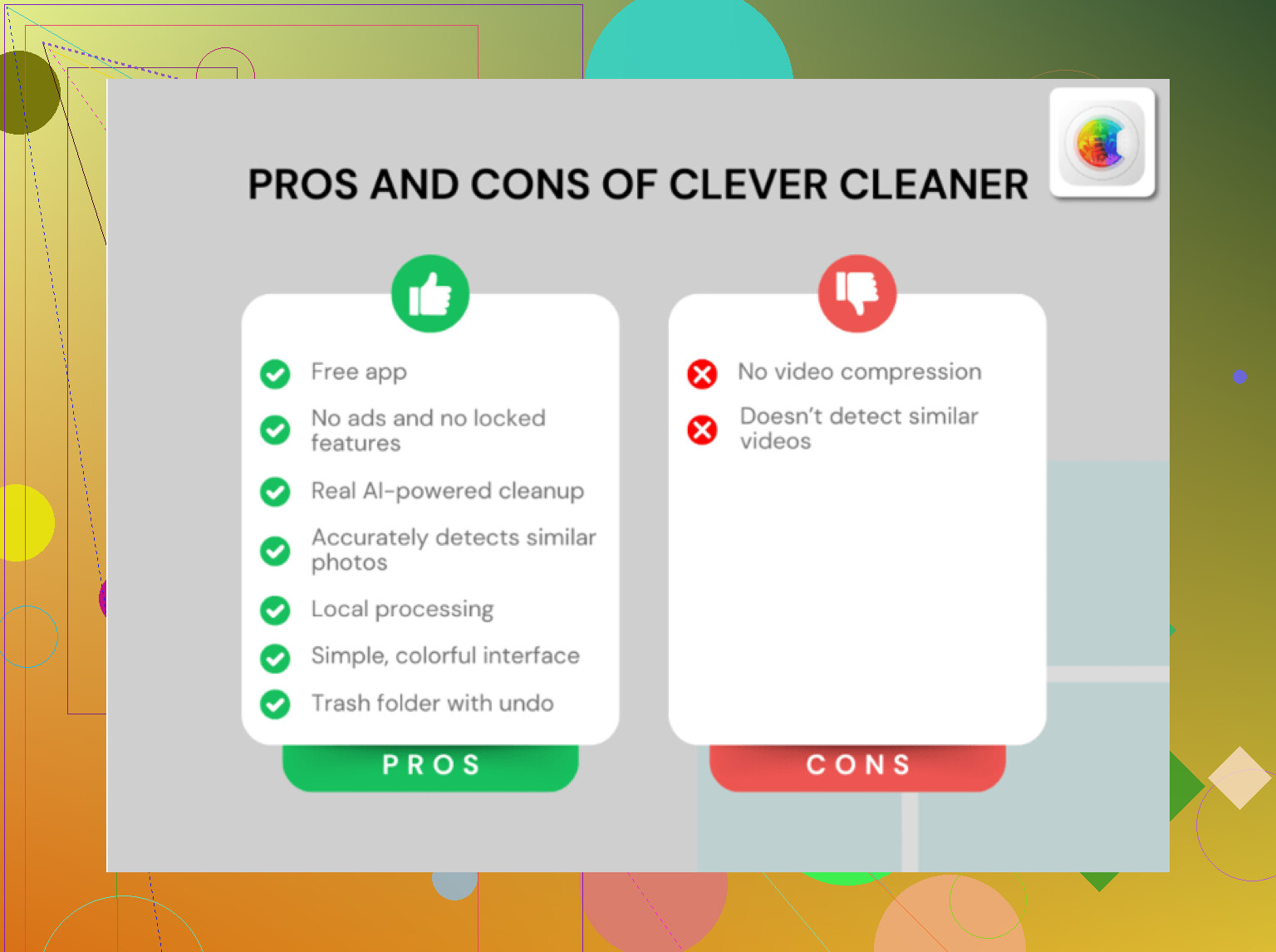
My take on free tools: no app can truly purge protected iOS system media/cache the way people hope. So if someone promises one-tap “clear all Media,” I’d be skeptical. Clever Cleaner is useful if your storage issue is actually hidden large photos, videos, screenshots, and duplicates.
Pros of Clever Cleaner:
- actually free to use
- fast at surfacing large visual files
- easy for duplicate and screenshot cleanup
Cons:
- won’t dig into every app’s private cache
- less helpful if the problem is Music/Podcasts/streaming downloads
- still requires you to manually confirm deletions
So yes, safe tool for photo-library cleanup. Not a magic eraser for the whole Media bar. If the size still looks stuck after deleting stuff, force restart and give iPhone Storage time to recalculate.