My Windows 10 PC suddenly stopped showing one of my partitions after a restart, and it had important files I need for work. Disk Management shows the space differently now, and I’m afraid of making it worse by trying random fixes. I need help with the safest way to recover the lost partition and get my data back.
I screwed this up once too, and the first thing I learned was simple. Deleting a partition usually does not wipe the files right away. Windows often removes the partition record first, while your data still sits on the drive untouched.
What matters now is this. Stop writing to that disk.
Do not create a new partition.
Do not format the empty space.
Do not copy files onto it.
Any of those steps might overwrite the old data, and once that happens, recovery gets uglier fast.
Open Disk Management and check what Windows shows.
If the partition still appears and only lost its drive letter, adding the letter might fix the whole thing.
If the space shows as Unallocated, I would skip experiments and go straight to file recovery. When I dealt with this, I leaned on Disk Drill. It found deleted partitions, and in my case it kept folder names and file names mostly intact, which saved me a ton of sorting later.
Recovery steps I followed
- Install Disk Drill on a different drive. Not the damaged one.
- Open it and pick the physical disk where the deleted partition used to be.
- Click Search for Lost Data.
- If it asks for a recovery method on an external drive, pick Universal Scan in most cases.
- If the source was a camera card or drone footage, use Advanced Camera Recovery instead.
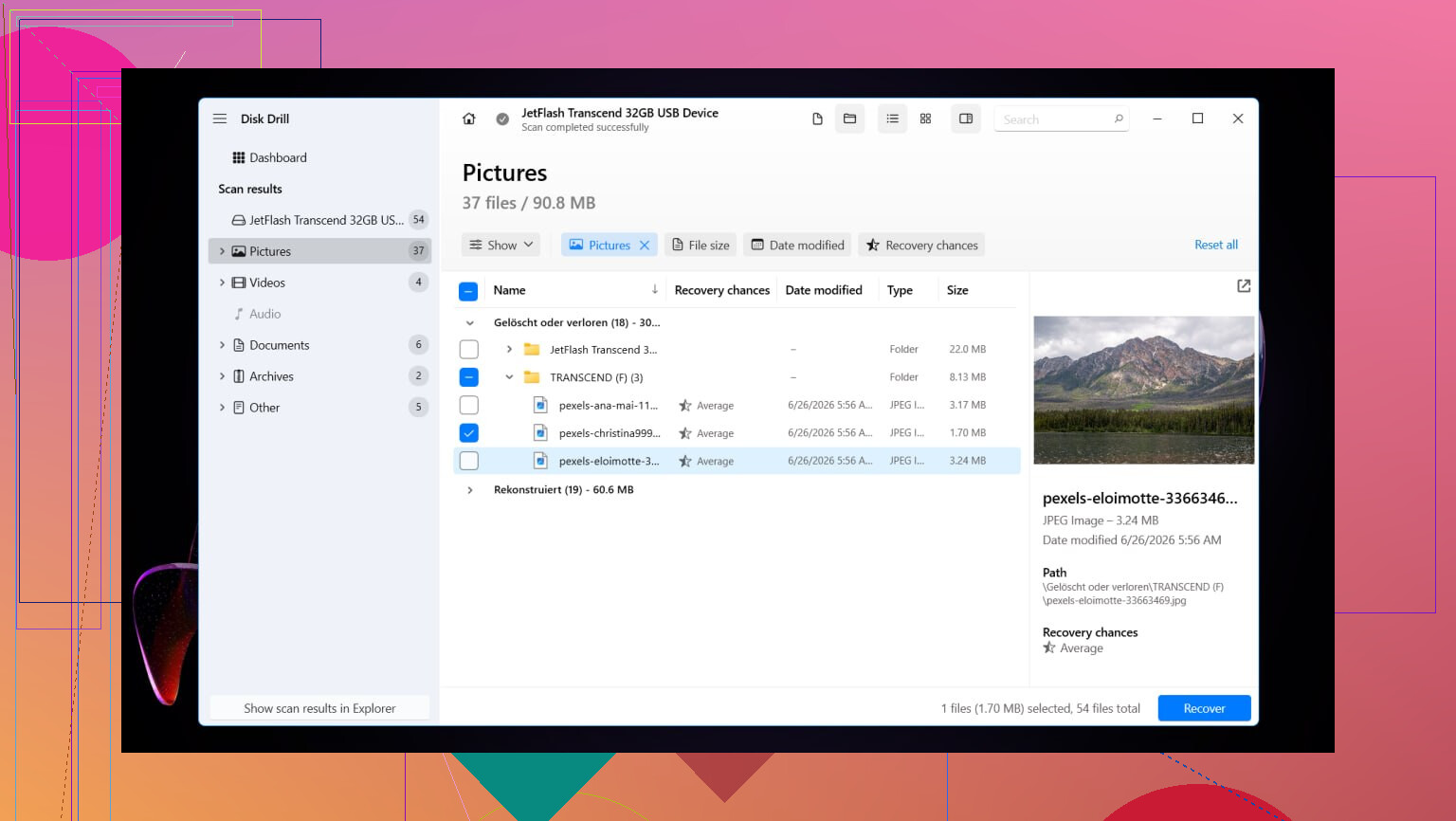
- Let the scan finish. If the deleted partition shows up, open it and look through the contents.
- Preview files before restoring them.
- Select what you need and hit Recover.
- Save everything to another drive.
That last part matters more than people think. Putting recovered files back onto the same disk during recovery is a good way to ruin your own rescue attempt. I nearly did tht once.
After your files are safe, you have two paths. You either restore the old partition layout with TestDisk, or you make a fresh partition in Disk Management and move the recovered files back. If your goal is only to get the data back and move on, the second route is usually less annoying.
I did this on Windows 11. Windows 10 looks a bit different, but the flow is pretty much the same.
Restore the original partition with TestDisk
If you want the partition itself back, not only the files, TestDisk is the free tool people keep going back to for a reason.
- Download TestDisk, extract it, and run testdisk_win.
- Choose Create so it writes a log.
- Select the physical drive with the deleted partition.
- Accept the partition table type it detects.
- Choose Analyse, then run Quick Search.
- If it finds nothing useful, run Deeper Search.
- When the missing partition appears, highlight it and choose Write.
- Confirm the change and reboot the PC.
If the partition table was not mangled too badly, the partition should show up again after restart.
Or skip that and make a new partition
If you already recovered the files and only want the drive usable again, this is the faster route.
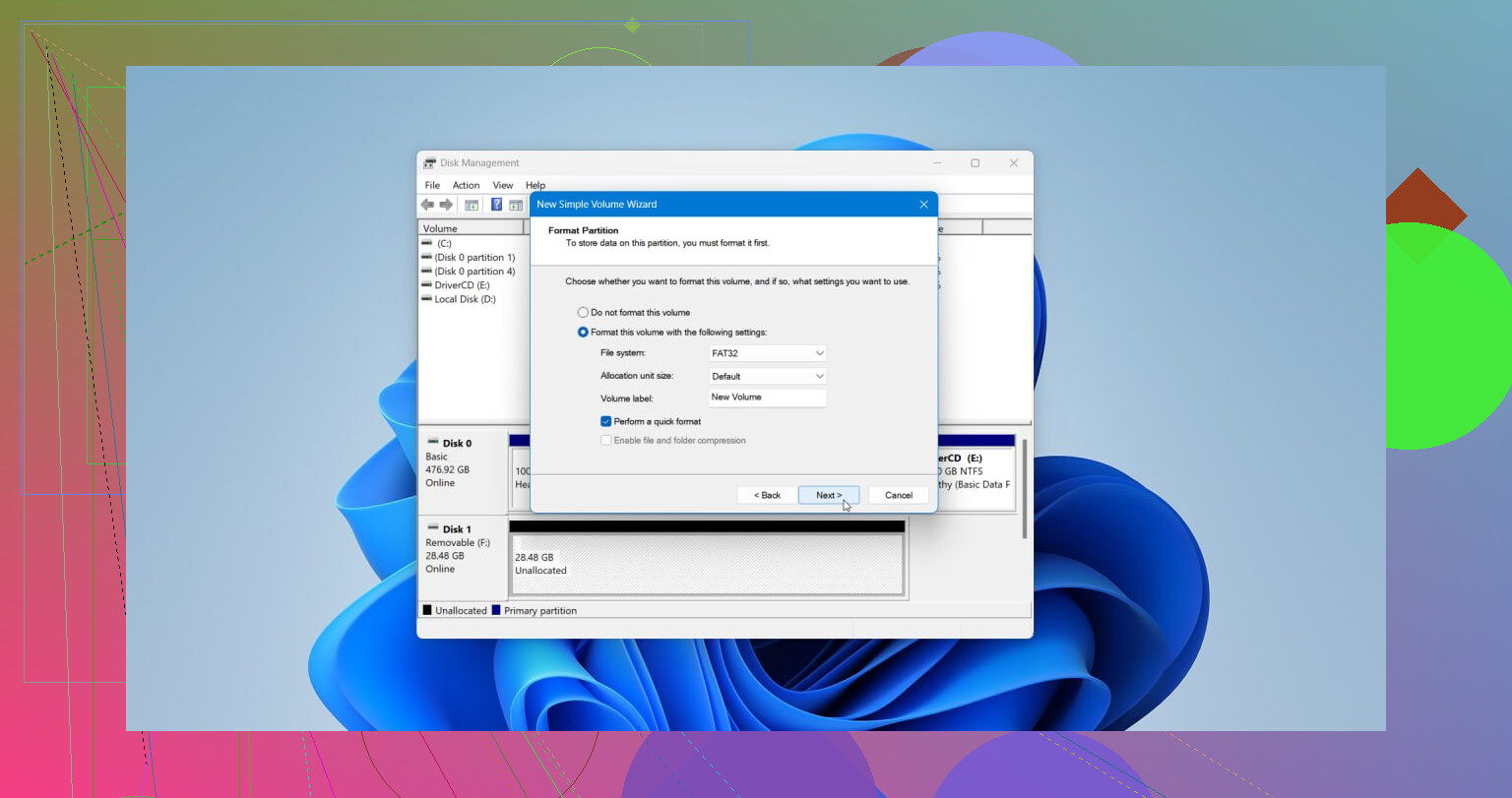
- Press Win + X and open Disk Management.
- Right-click the Unallocated space and pick New Simple Volume.
- Go through the wizard. Set the size if needed, assign a drive letter, and choose NTFS, or another file system if your setup needs it.
- Leave Perform a quick format enabled, then finish.
Once the new partition is ready, copy your recovered files back.
First, do not touch the disk more than needed. @mikeappsreviewer is right on that part. I’d add one thing before recovery tools. Check Disk Management and DiskPart to see if the partition is hidden, offline, or missing only its letter.
Do this:
- Open Command Prompt as admin.
- Type diskpart
- Type list disk
- Type select disk X
- Type list volume
If your volume shows there, assign a letter:
select volume X
assign letter=E
If the partition shows as RAW, skip CHKDSK for now. I disagree with people who run repair first. On a damaged file system, repair writes changes. Bad idea if work files matter.
If the space is unallocated, make a sector-by-sector image of the drive first if you have another disk big enough. Use HDD Raw Copy Tool or similar. Work from the clone, not the original. Safer.
For file recovery, Disk Drill is a solid pick on Windows 10 because it tends to rebuild file trees better than a lot of cheap junk tools. If you want a quick visual explainer, this Windows data recovery video guide for lost files and partitions is easy to follow.
One more check. Look in Event Viewer, Windows Logs, System, around the restart time. If the disk dropped offline or threw I/O errors, your issue mgiht be hardware, not only partition damage. If SMART looks bad, copy data first, always.
I mostly agree with @mikeappsreviewer and @vrijheidsvogel, but I would not jump straight into trying to rewrite the partition table unless you’re 100 percent sure the drive is healthy. A restart-related disappearance can be partition damage, sure, but it can also be a flaky SSD/HDD, bad SATA cable, or controller hiccup. If hardware is acting up, every extra scan is a gamble.
My order would be:
- Check SMART/drive health first with something simple like CrystalDiskInfo.
- If health looks sketchy, clone the disk before doing anything fancy.
- If the partition is just missing a letter or marked hidden, fix that.
- If not, recover files first, then worry about restoring the partition layout.
That’s where Disk Drill makes sense on Windows 10. Not saying it’s magic, but it’s easier for most people than messing with command-line tools half asleep and making things worse. Recover to another drive only. Seriously, don’t restore back to the same disk. Thats how people turn a recoverable problem into a “well, crap” problem.
One thing I’d avoid early on is CHKDSK. People love throwing it at every disk issue, but on a damaged file system it can “fix” your directory structure into oblivion. Great for consistency, terrible for missing work files.
Also, if Disk Management now shows the space as unallocated, don’t create a new volume yet just to “see if it works.” Windows is way too eager to help you destroy evidence.
For extra reading, this covers Windows 10 lost partition recovery tips and file rescue steps pretty well.
The replies cover disk recovery. I’d check existing copies first, since your priority is getting work files back.
If you previously synced those folders to OneDrive, sign in through a browser on another computer. Search for your documents and check teh OneDrive recycle bin for missing items. Restore deleted copies from there.
Also check email attachments or ask your IT team for backups. Save retrieved copies to a seperate drive and open your important documents to verify them.
This approach retrieves existing copies rather than repairing the missing partition. It depends on having backups or synced files.
Calling Disk Drill the fix here puts the emphasis in the wrong spot. Whatever tool you run, the thing that actually decides your outcome is whether you scanned a clone instead of the live disk, like @vrijheidsvogel said. Disk Drill does earn its keep in one way nobody mentioned though, you can run the scan and see what it finds before paying anything, so you’ll know if recovery is even worth the effort before you commit.