My iPhone has a lot of duplicate photos after syncing and restoring, and it’s taking up a ton of storage. I’m trying to find the easiest way to merge duplicate photos on an iPhone without losing anything important. What steps or tools work best to clean up duplicate pictures safely?
If your problem is only exact duplicate images, the iPhone already has a built-in way to deal with it.
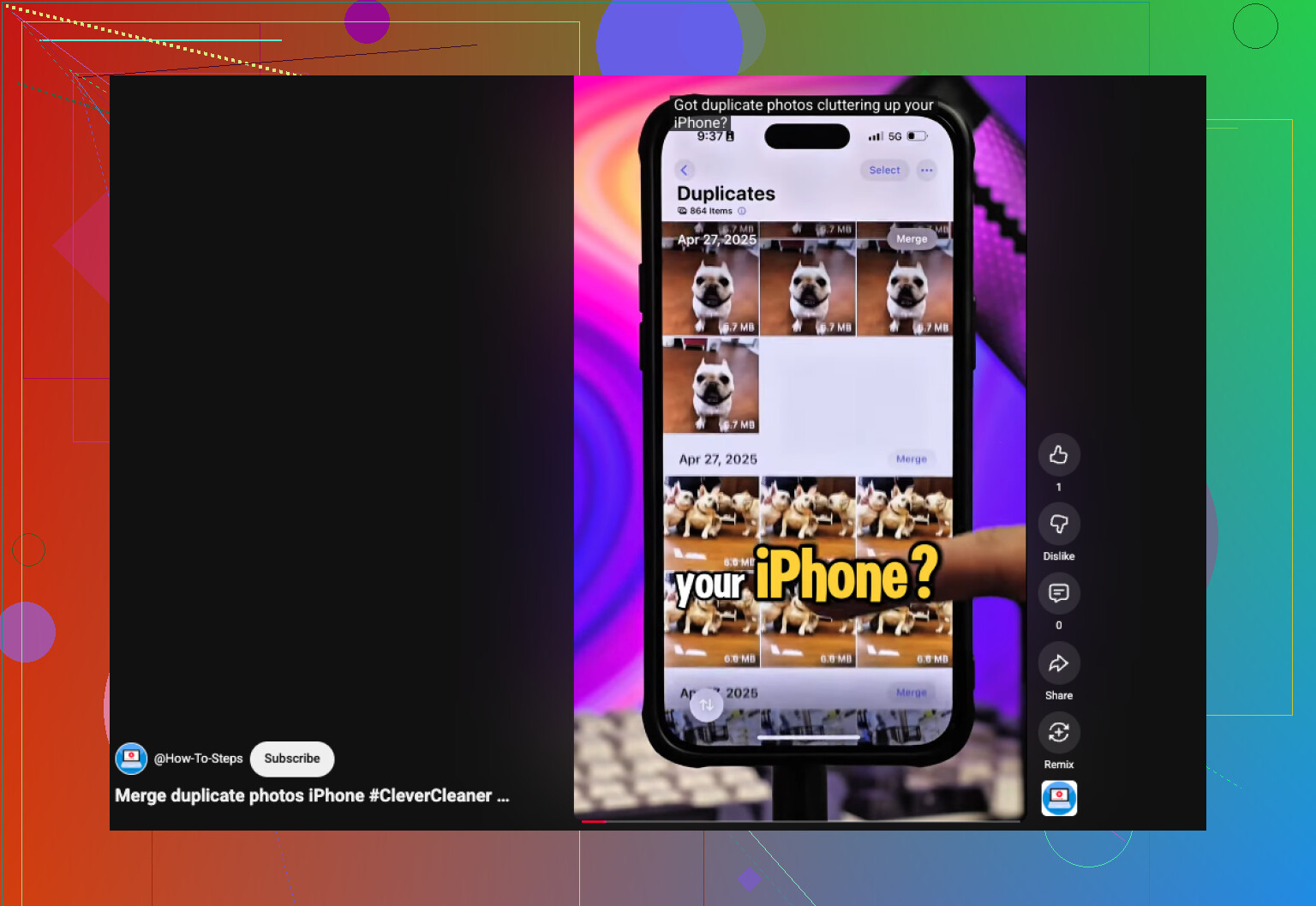
Open Photos, scroll to Utilities, or Collections > Utilities on newer iOS builds, then open Duplicates. Hit Select, then Select All, then Merge. iOS keeps one version, folds in the metadata it has, and sends the extra copies to Recently Deleted. One thing I ran into, after a big import, the Duplicates section stayed half-empty for hours. On my phone it took close to a day before everything showed up. The library needs time to index.
Where it falls short is simple. Apple only catches true duplicate files. If you took a burst of five shots, snapped a few selfies with tiny expression changes, or ended up with near-identical vacation pics, those usually stay separate. They look the same to you. iOS treats them as different.
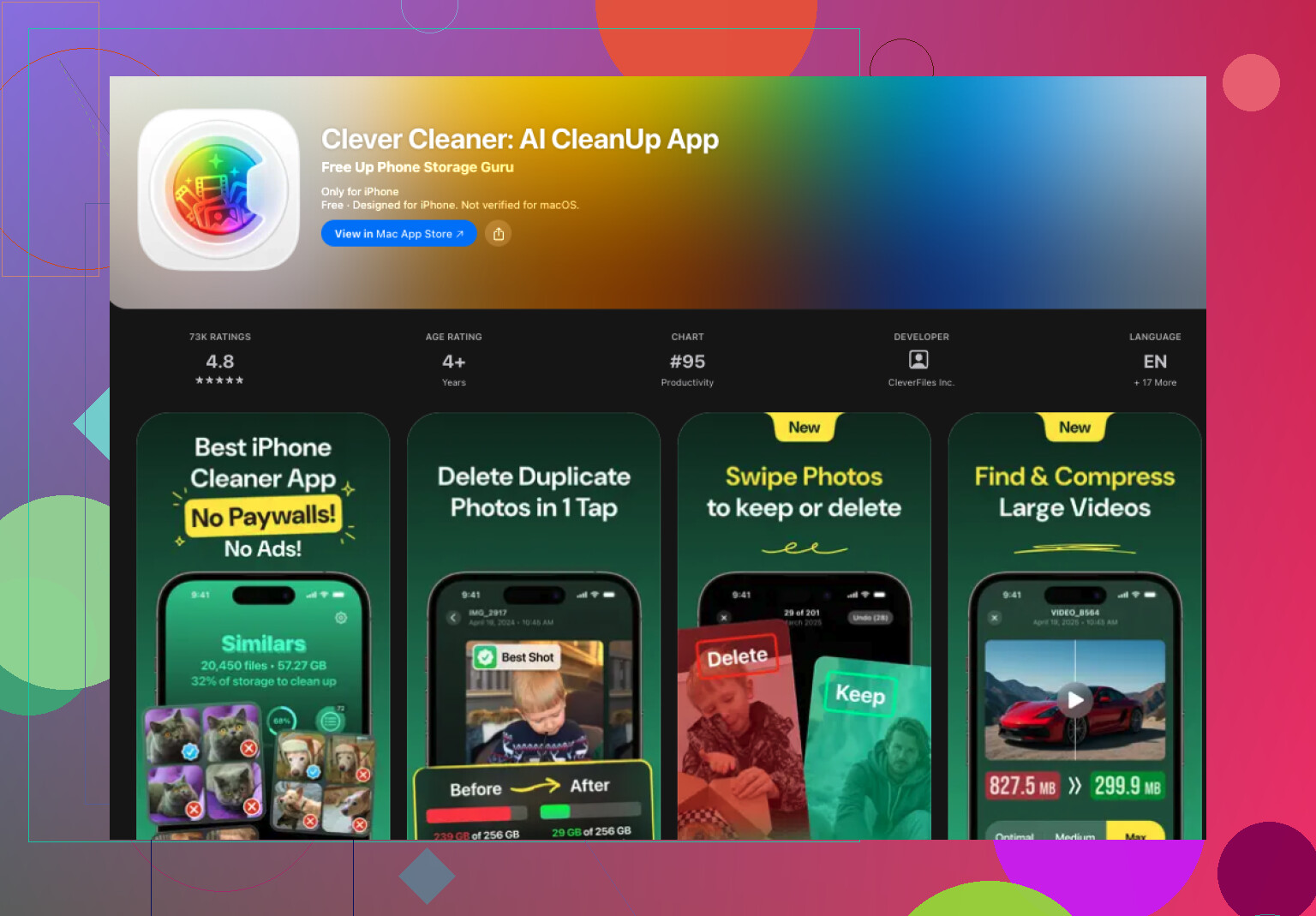
I ran into this with a library of about 30,000 photos, and the stock Photos app stopped being enough. What worked better for me was Clever Cleaner.
What stood out, for me anyway, is it checks for both duplicates and similar-looking images. It does not stop at file matches. It groups photos by visual similarity and picks a best shot to keep. I still go through the results before deleting stuff, becuase no scanner gets everything right, but it did a solid job on my phone.
This is the flow I use:
- Install Clever Cleaner from the App Store.
- Give it time to scan your library.
- Go into the Similars tab.
- Tap Smart Cleanup if you want fast cleanup, or check each group yourself.
- It marks one higher-quality photo to keep and selects the rest for removal.
- Bring back any shots you do not want deleted.
- Finish the cleanup, then clear Recently Deleted in Photos if you want the storage back right away.
I ended up using some of its other sections too:
- Heavies shows the biggest photos and videos first.
- Video Compression shrinks large videos without removing them.
- Screenshots makes it easy to wipe old screenshots fast.
- Lives turns Live Photos into standard stills to save space.
- Swipe gives you a quick month-by-month review with simple gestures.
So, if you only need to merge a few exact duplicate files, Apple’s built-in tool works fine. If your library is big and full of near-matches, similar shots, and repeat clutter, a dedicated app does a better job. That was my experiance at least.
If you want the easiest path with the least risk, do this in two passes.
First, back up your iPhone. iCloud Photos or a Mac import. Sync and restore jobs love to make a mess, and undoing deletions is a pain.
Second, check what type of duplicates you have. This matters more than people think. After restores, I usually see 2 buckets:
- True duplicates, same image saved twice
- Near-duplicates, same moment, different file or tiny edit change
I agree with part of what @mikeappsreviewer said, but I would not rush into mass merge on a huge library right away. After a restore, indexing gets weird. Storage numbers lag. Duplicate detection lags too. I’d wait a bit, then review a sample first. Saves headaches.
If your library is large, Clever Cleaner is the easier route for review because it sorts similar photos faster than doing it all by hand. I like it more for triage than “merge.” iPhone photos do not truly merge like contacts. One file stays, the rest get deleted. That’s the key point pepole miss.
Best workflow I’ve found:
- Backup first.
- Let Photos finish syncing and indexing.
- Use Clever Cleaner to review similar shots and duplicate clutter.
- Delete in batches, not all at once.
- Empty Recently Deleted only after you confirm your library looks right.
Also, if storage is the main issue, check videos, screen recordings, and WhatsApp saves. Those often eat more space than duplicate photos.
For a quick visual guide, this helps: watch this quick iPhone duplicate photo cleanup guide
Best page title for this topic, if you’re searching around:
How to Merge Duplicate Photos on iPhone, Easy Guide to Remove Duplicates Safely
Short version, use Apple’s tool for exact dupes, use Clever Cleaner for the messy stuff after sync or restore. That combo is the least annyoing.
One thing I’d add to what @mikeappsreviewer and @boswandelaar said: before deleting anything, check whether the “duplicates” are actually shared from another source like iCloud Shared Library, WhatsApp, or synced albums from a Mac. A lot of people think they’re cleaning the main library, but they’re really just removing one visible copy while the same pic still exists somewhere else. That’s why storage sometimes barely changes and people get annoyed.
Also, I slightly disagree with the idea that “merge” is the right word here. On iPhone, it’s mostly keep one, trash the rest. So if your goal is safety, the easiest method is not the fastest one. It’s the one where you review in chunks.
What worked better for me:
- sort your Photos by recently added
- look around the date of the restore/sync mess
- clean those batches first
- then deal with older clutter later
That’s way less risky than nuking your whole library in one shot.
If Apple’s built-in duplicate finder misses too much, Clever Cleaner is probly the easiest next step because it surfaces similar shots, not just exact file copies. I’d use it more as a review tool than a blind delete tool, though. Same with any cleanup app, tbh.
And if you want extra reading from actual iPhone users, this thread is pretty useful: best Reddit tips for deleting duplicate photos on iPhone
Biggest tip: don’t empty Recently Deleted right away. Wait a day or two. Saved me once.

I’d actually push back a little on the word merge here. On iPhone, photo “merge” is basically keep one copy, delete the extras. So the easiest safe approach is deciding whether you want to clean exact duplicates only, or also the messy almost-the-same shots created by sync chaos.
A few things @boswandelaar, @stellacadente, and @mikeappsreviewer touched on are right, but one extra check matters a lot: look at the photo info before deleting. If two images look identical but have different file sizes, formats, or edit histories, they may not be true duplicates. One could be the edited version, HDR version, or a copy from Messages.
My rule:
- If storage is tight, start with the largest duplicate clusters first
- If memories matter more, keep the version with the better metadata, edits, or original date
Clever Cleaner is useful when Apple misses near-duplicates.
Pros
- finds similar shots, not just exact copies
- easier visual review for huge libraries
- good for post-sync cleanup mess
Cons
- can over-group similar moments
- still needs human review
- “smart” cleanup is faster than it is careful
So my version is: use Apple first for exact dupes, then Clever Cleaner only for review-heavy cleanup. I would not trust any app to bulk-delete your whole camera roll in one go.