My iPhone keeps saying storage is full even though I have iCloud turned on and thought my photos and files were being saved there. I’m confused about the difference between iPhone storage and iCloud storage, and I need help figuring out why this is happening and what I can safely delete without losing anything.
Your iPhone throwing the “Storage Full” alert is miserable. I hit this on an iPhone 13 a while back, and the phone went downhill fast. Apps hung. The camera took forever to open. A quick photo turned into a wait. Once or twice, the phone restarted on its own. From what I saw, iOS gets weird when it has no breathing room for temp files and background stuff.
First thing I’d check is what is eating the space, not what feels guilty. People tend to blame apps first. Mine wasn’t apps. It was old 4K clips, message junk, and a chunk of system cache I forgot existed.
Open Settings > General > iPhone Storage. Give it a minute. The breakdown loads slowly sometimes. You’ll get the bar at the top showing what is taking over, Photos, Apps, Messages, or the vague “System Data” bucket.
If you pay for iCloud and your phone still says full, yeah, that trips people up. iCloud is not automatic extra room on the phone. It only helps if Photos is set up right.
Go to Settings > Photos, then make sure “Optimize iPhone Storage” is turned on.
If it’s off, your phone keeps the full versions on the device. If it’s on, the phone keeps smaller local copies and leaves the full resolution files in iCloud. Big diff.
I tried doing the cleanup by hand first. Bad idea. I burned way too much time digging through the Recently Deleted album, which still counts against your storage for 30 days. Then I started sorting blurry duplicates one by one. Awful.
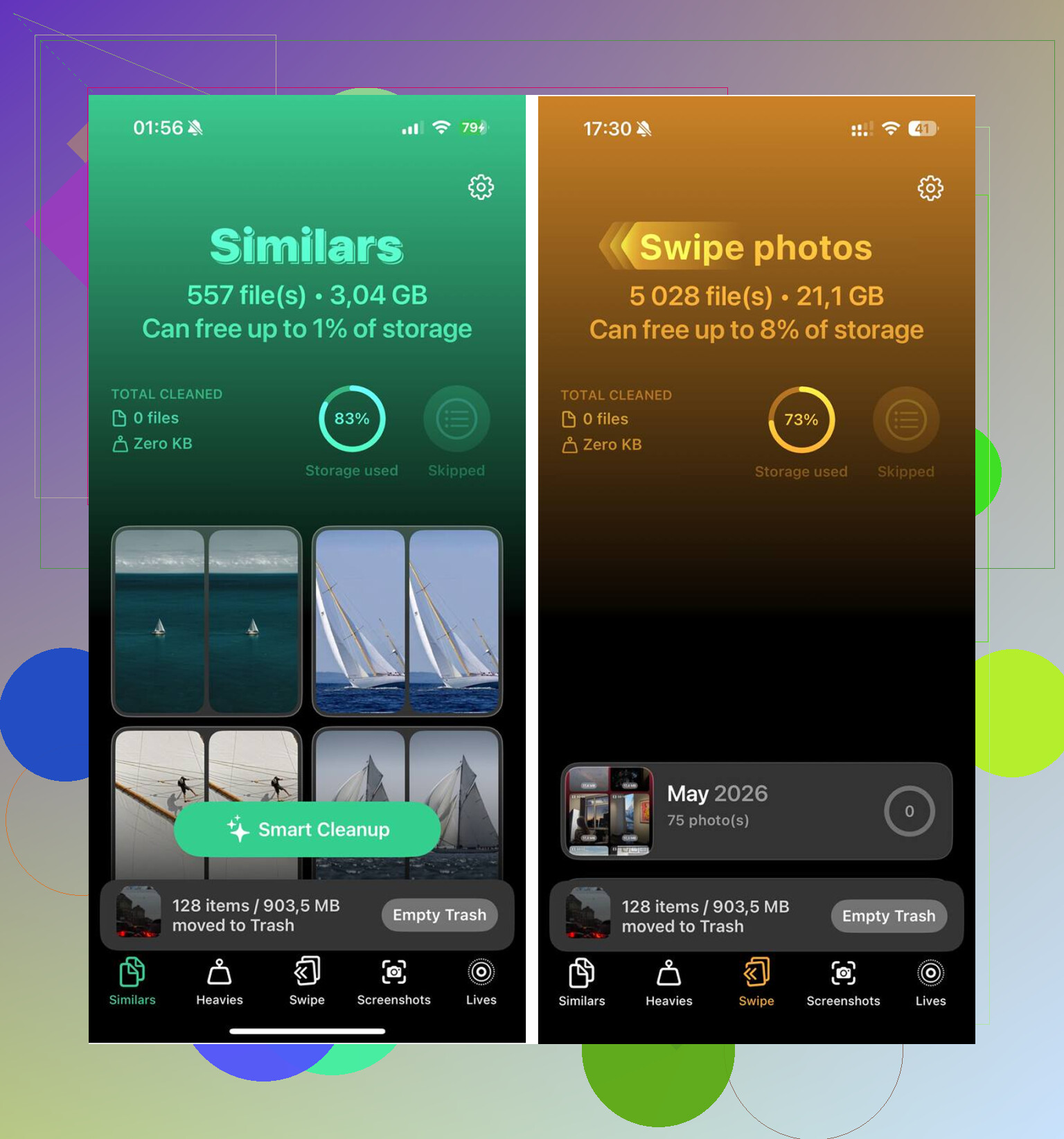
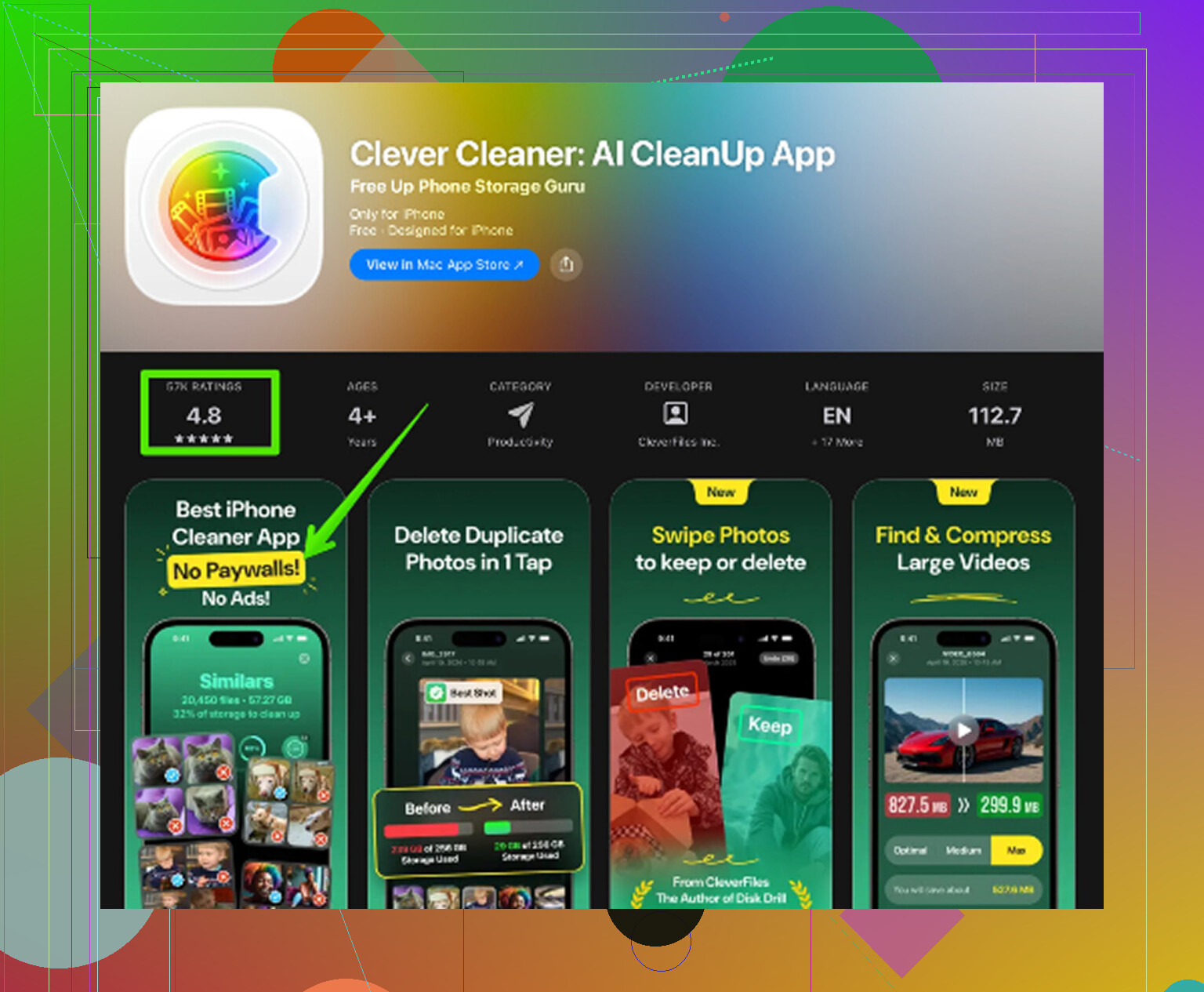
What fixed it for me was using a cleanup app, even though I didn’t trust those at first. The one I ended up keeping was Clever Cleaner.
Why I stuck with it:
- It sorted the biggest files first, so I found old videos taking up multiple GB in minutes.
- It grouped similar photos, which helped with those bursts of near-identical shots.
- It showed screenshot sizes too, and mine were a mess. Old memes, receipts, QR codes, random junk.
- It handled the scan on the phone itself, which felt less sketchy to me.
I cleared around 12GB with it. After that, the lag was gone. The phone felt normal again. Not magic, still the same phone, but usable agian.
If storage is still tight after a big pass, check these spots too.
Messages
Go to Settings > General > iPhone Storage > Messages. Look for Large Attachments. Old videos, GIFs, and image threads pile up hard. Mine had stuff from years back.
Safari
Go to Settings > Safari > Clear History and Website Data. This won’t free massive space most of the time, though I’ve seen it clear a few hundred MB.
Music and Podcasts
Open those apps and check downloads. Offline albums and podcast episodes stack up quietly. I had downloaded playlists I forgot about completely.
One more thing people miss. After deleting photos and videos, empty Recently Deleted in Photos. If you skip that, the space doesn’t come back yet, and it looks like nothing changed.
If your phone is packed, I’d do it in this order:
- Check iPhone Storage
- Turn on Optimize iPhone Storage
- Delete large videos first
- Clear duplicate or near-duplicate photos
- Review Large Attachments in Messages
- Clear Safari data
- Remove offline music and podcast downloads
- Empty Recently Deleted
Doing all of this by hand took me forever. Using a cleaner cut it down to maybe 15 minutes for the first serious pass. After that, it was easy to keep under control.
iCloud being on does not mean your iPhone gets extra local space. That part trips up a ton of people.
Your iPhone storage is the physical space inside the phone, like 64GB or 128GB.
Your iCloud storage is online storage tied to your Apple ID.
They work together, but they are not the same pool.
Example:
If your phone has 64GB and it is full, buying 200GB of iCloud does not turn the phone into a 264GB phone. Your device still needs free local space for iOS, apps, cache, updates, photos in use, and temp files. If local storage hits zero, the phone starts acting buggy and slow.
One spot where I slightly disagree with @mikeappsreviewer is the idea that iCloud Photos fixes most of it by itself. It helps, but only after sync finishes, Optimize iPhone Storage is enabled, and the phone has enough free room to manage the swap. If your storage is already slammed, iCloud sometimes lags behind and looks useless.
A few things to check that are different from the usual delete-photos-first advice:
-
iCloud Drive is not offloading everything
Files in the Files app, especially items marked “Downloaded,” still sit on your phone. Open Files, look for big folders, and remove local downloads you no longer need. -
App data stays local
Apps like TikTok, Instagram, Netflix, Spotify, YouTube, and Google Maps store cache and downloads on the device. Offloading the app keeps documents and data. Deleting and reinstalling often frees more space than offload. Annoying, but true. -
Mail attachments pile up
If you use the Mail app a lot, old attachments and cached messages eat space. Removing and re-adding the mail account sometimes clears junk data faster than digging around menus. -
iCloud backup is not a storage cleaner
A lot of people think, “My phone is backed up to iCloud, so I’m safe to ignore storage.” Backup protects data. It does not clear local files from the iPhone. -
Shared albums and synced media still take room
If you sync media from a Mac or PC, or save lots from Messages and WhatsApp, those files still live on the phone unless removed.
If you want a fast audit, check Settings, your name, iCloud, Manage Account Storage, then compare it with Settings, General, iPhone Storage. If iCloud has plenty free space but iPhone Storage is red, your issue is local storage only.
If photos are the main culprit, Clever Cleaner is worth a look for finding big videos, duplicates, and screenshot junk faster. I would still check app caches after, becuase photo cleanup alone does not fix every “Storage Full” warning.
If you want a solid guide on iPhone cleaner apps, this roundup is useful:
best AI cleaner apps for iPhone, tested for real storage cleanup
Short version:
iCloud stores copies and syncs data.
iPhone storage runs the phone.
When iPhone storage is full, iCloud being turned on does not save you by itself.
iCloud being on does not mean your iPhone stops using local storage. That’s the part Apple explains kinda badly.
Think of it like this:
- iPhone storage = the actual space inside your phone
- iCloud storage = online syncing/backups/storage tied to your Apple ID
So if your iPhone is full, it can still scream about storage even when iCloud has tons of free space left. @mikeappsreviewer and @yozora are right on that part, but I’d push back a little on the idea that this is always mainly a Photos problem. Sometimes it’s not. Sometimes it’s just bloated app data and “System Data” being a gremlin.
A few things people miss:
- iCloud Backup does not remove stuff from the phone
- Messages in iCloud still may leave local copies/caches
- WhatsApp/Instagram/TikTok can hoard gigs of junk locally
- Downloaded files in Files app stay on-device until removed
- Failed iOS update files can sit there and waste space too
Also, if your phone is SUPER full, iCloud syncing can stall. So people think “but it should all be in iCloud,” while the phone is too clogged up to finish housekeeping. Very Apple, very cool.
One thing I’d do that hasn’t really been stressed enough: restart the iPhone after clearing space. Sounds dumb, but I’ve seen storage categories recalculate after a reboot and suddenly a couple GB comes back.
If Photos/videos are the problem, Clever Cleaner is actually useful for finding giant videos, duplicate shots, and screenshot clutter faster than digging through the gallery like a caveman. Not magic, but way faster.
And if you want a visual walkthrough, this is a solid step by step guide to free up iPhone storage and fix the storage full warning.
Short version: iCloud helps store and sync. It does not replace the storage chip inside your phone. Totally diff things, and yeah, it confuses almost everybody at first.
Try a direct computer transfer. Connect your iPhone to a Mac or Windows PC with a USB cable. Import your photos and videos, then open several files to verify the transfer worked. Copy them to an external drive for extra safety.
Next, delete the transferred items from your iPhone and empty Recently Deleted. Large videos often free several GB fast. Restart your phone after cleanup.
This skips iCloud syncing, cleaner apps, and slow manual sorting. Remeber to verify every file before deleting anything.
Don’t expect that red storage bar to clear all at once. Even after you delete a big pile of stuff, iOS often keeps showing you full for a while because it hasn’t finished recalculating. So if you delete 8GB and nothing changes on screen, don’t panic and start deleting apps you actually need.
The thing nobody here really nailed is what that ‘System Data’ bucket actually is. It’s mostly caches, logs, and leftover temp files, and you can’t tap it and clear it directly. What actually shrinks it is giving the phone free space to work with and letting it sit, ideally plugged in overnight. @voyageurdubois is right about the restart helping the numbers redraw, but the bigger win is just leaving enough headroom that iOS can dump its own junk. When the phone is pinned at zero free space, it can’t even do its normal cleanup, which is why it spirals.
On the Clever Cleaner point, it fits fine for the photo and video side, since that’s usually the fattest chunk and the easiest to attack fast. But I’d treat it as the first pass only. It won’t touch System Data or app caches, so if your Photos aren’t the real problem, a photo cleaner leaves you exactly where you started. Check the storage breakdown first and see if Photos is even the top item before you assume that’s the fix.
If you’re chronically hitting full on a 64GB phone, honestly the cleanup is just buying time. That’s a device that’s too small for how you use it, and you’ll be back here in two months.