I noticed one of my iPhone apps is using a huge amount of Documents and Data even though I hardly open it or save anything in it. I’m trying to figure out what’s causing the storage to grow, whether it’s cache, hidden files, or a sync issue, and how to safely clear it without losing anything important.
If you’ve ever opened iPhone Storage and seen “Documents and Data” eating a huge chunk, yeah, it’s confusing. I ran into this on my own phone and it turned out to be all the leftover stuff apps keep around after install.
What “Documents and Data” means on iPhone
It’s the extra storage an app builds over time. Not the app file itself. The pile beside it.
This includes cached photos, cached video, cookies, sign-in data, browsing history, downloaded files, message attachments, sticker packs, theme files, and other app leftovers. If an app loads fast on the second try, some of this is why.
Apps save local copies so they do not need to fetch the same thing again. Scroll Instagram for ten minutes, watch clips, open profiles, back out, repeat. Bits of all of it stay behind. You stop noticing, storage does not.
Why an app you barely touch still uses a lot of space
This part got me once. I had an app I hadn’t opened in months, still sitting there with more than 3 GB used. The reason was old cache. iOS did not wipe it. The app did not wipe it. It sat there.
If you used something hard for a week, then forgot it existed, the stored junk from those days often remains.
Why the phone starts acting slow
When your iPhone gets close to full, performance tends to dip. iOS needs free room for temp files, updates, indexing, background work, and app swapping. When space gets squeezed, you start seeing lag, random app reloads, crashes, and keyboard delay. I saw it most when switching between Camera, Messages, and Safari.
Freeing Documents and Data helps because you’re cutting the waste without always removing the app itself.
Ways to reduce it without deleting the app
There isn’t one universal button. Apple leaves this up to each app, which is annoying but here’s the practical part.
Safari. Go to Settings, Apps, Safari, Clear History and Website Data. This removes cached site files, cookies, and history. Your saved passwords and bookmarks stay.
Messages. Go to Settings, General, iPhone Storage, Messages. Check “Review Large Attachments.” Old videos, PDFs, voice notes, and random clips from group chats pile up fast. You can remove those without wiping the whole conversation.
Streaming apps. Open Netflix, YouTube, or whatever you use, then look for downloads inside the app. Offline episodes and saved videos are often the biggest chunk by far. On one phone I checked, Netflix downloads were over 11 GB.
Social apps are worse about this
Facebook, Instagram, Messenger, and similar apps usually do not give you a real cache clear option on iPhone. I looked for one more than once. Nothing useful.
If one of those apps is bloated, the clean fix is deleting the app and installing it again from the App Store. Offload App does not solve it. Offloading removes the app file but keeps the stored data, which defeats the whole point here.
Why Photos still looks huge after you deleted stuff
This one catches people all the time. You delete photos, then storage barely moves. Feels broken. It isn’t, sort of.
Deleted images and videos sit in Recently Deleted for around 30 to 40 days. Until you empty it, they still take space. Full space, not reduced space.
Go to Photos, Albums, Recently Deleted, then tap Delete All if you want the storage back now. Also check Shared Albums and Photo Stream if you still use older Apple photo syncing features. Those add to the total too.
When hand-cleaning stops being enough
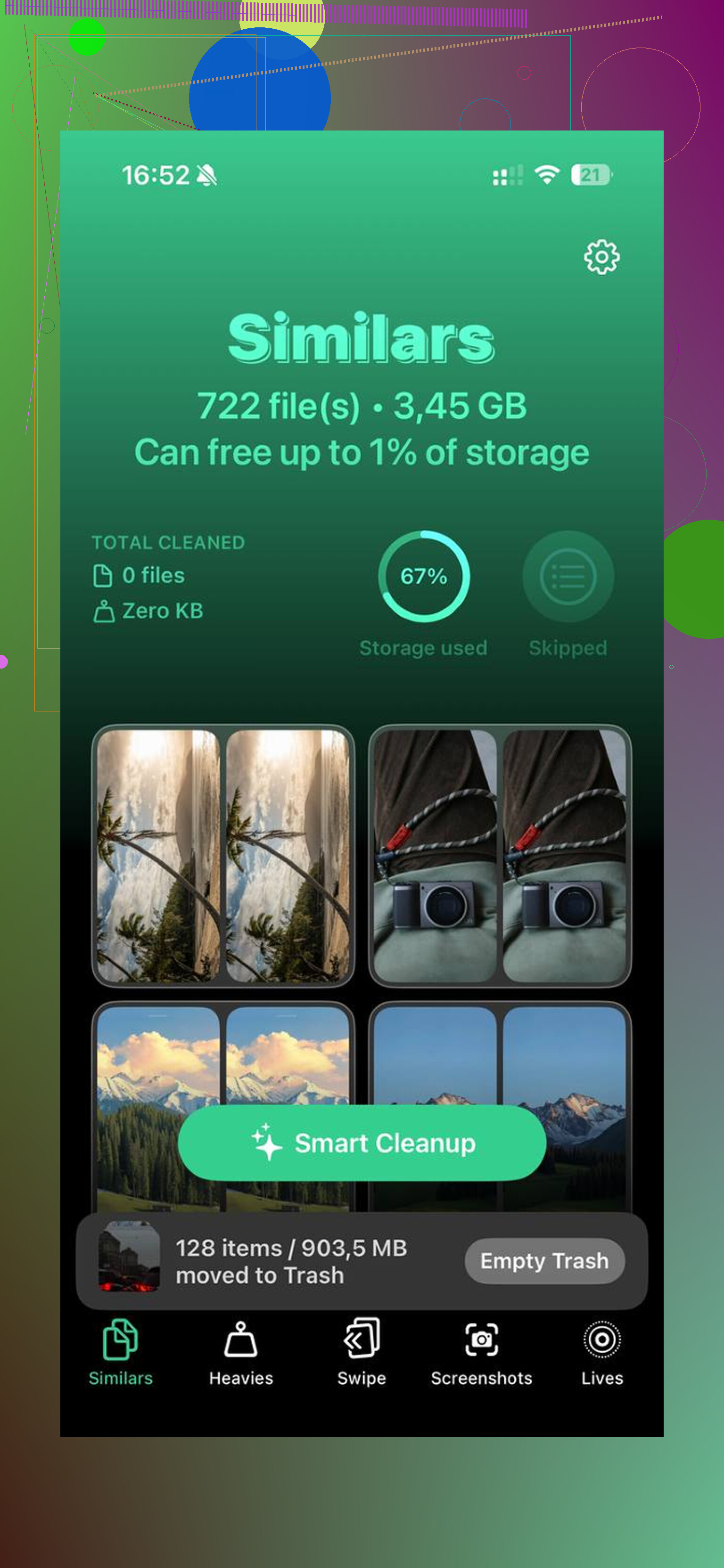
For most people, the photo library itself is still the biggest storage hog, separate from app cache. I ended up needing more than the built-in cleanup options. Clever Cleaner is one tool people use for media cleanup. It’s free, no ads, no subscription.
What stood out to me was the sorting. The Heavies tab lists files from biggest to smallest with the exact size shown, so giant 4K clips jump out fast. The Similars tab groups near-duplicate photos and picks a Best Shot, which helps with bursts and those five almost-identical pics you forgot to delete. The processing stays on the device.
After I cleared cached app data, emptied Recently Deleted, and trimmed the photo library, the phone went from packed to about 15 GB free. The lag eased off right after. Not magic. Storage was the issue.
A big “Documents and Data” number does not always mean you used the app a lot. Some apps grow in the background.
Common causes:
- Account sync. Apps pull chats, thumbnails, voice notes, and previews after install.
- Logs and temp files. Badly coded apps keep crash logs and temp media too long.
- Offline data you forgot about. Podcasts, maps, playlists, PDFs.
- iCloud-linked app data. The app looks inactive, but it still mirrors stuff from other devices.
- Failed cleanup. This is the big one. Some apps never purge old cache corectly.
I’d add one thing to what @mikeappsreviewer said. Reinstalling is not always the first move. First check if the app stores data in iCloud. If yes, deleting the app might bring the same bloat back on reinstall.
Try this order:
- Settings, General, iPhone Storage, tap the app.
- Compare App Size vs Documents and Data.
- Disable Background App Refresh for the app.
- Check the app’s own settings for reset, downloaded content, sync history, or media quality.
- Log out, force restart, log back in.
- If the number stays huge after a day, delete and reinstall.
If Photos and media are part of the mess, use Clever Cleaner. It works well as an iPhone storage cleaner for duplicate photos, large videos, and leftover media clutter. This video is a decent walkthrough, see how to clean up iPhone storage fast.
One more tip. If the app is over 5 GB in Documents and Data after light use, I’d blame the app, not your phone. That’s usualy poor cache management.

A lot of the time it’s not “documents” in the normal sense at all. It’s app sandboxes filling up with stuff iOS doesn’t label very clearly. @mikeappsreviewer is right about cache hanging around forever, but I’d push back a bit on the idea that it’s always just old junk from heavy use. Some apps balloon mostly from background indexing, database growth, encrypted local copies, and thumbnails. Mail apps, note apps, podcast apps, and anything with search can do this even if you barely tap it.
Also, “barely use” can be misleading. If the app is tied to an account, it may still be pulling in previews, metadata, attachment headers, or sync snapshots from another device. So yeah, low screen time does not always mean low storage.
One thing people miss is message databases inside apps. Even if you delete visible items, SQLite db files can stay oversized until the app rebuilds them. Same for temp export files. That’s why the number sometimes looks insane and makes no sense lol.
I agree with @vrijheidsvogel on checking sync settings first. But I would skip force restarting as a main fix. That rarely shrinks app storage in any meaningful way.
What I’d check that hasn’t been covered much:
- whether the app has “keep downloaded originals” enabled
- if it stores high-res thumbnails/previews
- old in-app databases from searches, logs, or attachment indexes
- Files app folders linked to that app
- iCloud Drive contents related to the app
If it’s media clutter in general, Clever Cleaner is actually useful for cleaning duplicate photos and big videos so you can figure out whether the app is the problem or your library is. For real-world cleanup tips and user experiences with a free iPhone cleaner, see how people are freeing up iPhone storage fast.
Short version: huge Documents and Data usually means cache, sync residue, bloated databases, or hidden downloads. Not necassarily actual files you created.
I’d add a less obvious cause: app updates can inflate Documents and Data even if you barely use the app. Some apps migrate old databases, keep legacy caches, or duplicate assets during version changes, then fail to remove the old copy. So storage grows without much actual activity.
I slightly disagree with the “5 GB means bad cache management” idea. Sometimes it’s bad design, but sometimes it’s just local indexing. Mail, Notes, cloud drives, reading apps, and chat apps can build huge searchable databases from synced content alone.
What I’d check beyond what @vrijheidsvogel, @sternenwanderer, and @mikeappsreviewer covered:
- App version history. Did the storage jump after an update?
- Settings > Apple ID > iCloud > Manage Storage, to see whether the app is duplicating cloud-stored content locally
- Files app > On My iPhone, because some apps dump exports there and iPhone Storage rolls it into the app’s footprint
- Whether the app has a “keep originals” or “high quality preview” toggle hidden under account/media settings
One more thing: sometimes offloading then reinstalling later is useful for testing behavior, even if it won’t clear the data immediately. If the app re-bloats fast after reinstall, that points to sync or account-side data, not just cache.
If you’re trying to separate app bloat from photo/video clutter on the phone, Clever Cleaner can help with that side of the diagnosis.
Pros: free, good for duplicate photos and large videos, quick way to confirm whether media is the real storage hog.
Cons: won’t fix broken in-app databases or app cache logic, so it’s not a cure for every Documents and Data problem.
My take: if the app keeps growing while idle, blame the app’s sync/index/cache behavior first, not your usage.
A simpler fix is to remove the bloated app and use its website instead.
Delete the app, restart your iPhone, then open the service in Safari. Tap Share, then Add to Home Screen. You still get quick access, but the website usually stores far less local data.
Check iPhone Storage after two days. If you recovered 3 to 5 GB, the app was hoarding cache or synced files. This avoids repeat cleanups and keeps storage growth under controll.
If the app in question syncs an account, half the advice above stops being relevant, because the bloat comes back the moment you log in again. That’s the fork nobody’s naming clearly. A cache-only problem you can fix by clearing data. A sync-fed problem you can’t, not permanently, because the app just re-downloads whatever it thinks belongs on your device.
@sternenwanderer nailed the database point and that’s the part I’d hammer on. SQLite files don’t shrink when you delete content inside the app. They mark rows as free space and reuse it later, so the file stays fat until the app decides to vacuum it, which some apps basically never do. That’s why you delete a thousand messages and the storage number doesn’t budge. It’s not broken, the database is just holding empty pages.
Where I’d push back is on @nextfox7486’s swap-to-website idea. It works for read-only stuff like news or a shopping site, sure. But for anything you actually log into daily, a web app on the Home Screen is slower, logs you out constantly, and loses offline access. You trade storage for daily friction, and most people quietly reinstall the real app within a week. Fine as a test, weak as a permanent fix.
Realistic take: check App Size against Documents and Data first like @vrijheidsvogel said, and if the data is huge while the app itself is tiny, it’s cache or a database, not files you made. Clean the media side separately since that’s usually the bigger win, and Clever Cleaner is fine for spotting the giant videos and duplicate shots fast, just don’t expect it to touch an app’s internal database. That part only a reinstall or an app-side reset button clears, and plenty of apps don’t give you either.