My iPhone has started freezing and lagging randomly, even when I’m just doing simple things like texting, browsing, or opening basic apps. I’ve tried restarting it and closing background apps, but the performance is still really slow and choppy. I’m worried something might be wrong with the software or hardware. What could be causing this, and what should I do to fix it?
Random freezes and lag on iPhone usually come from a few common things. I’d go through these step by step and see where it breaks.
- Check storage
- Go to Settings > General > iPhone Storage.
- If you are under 5–10 GB free, the phone slows down a lot.
- Delete big videos, old chats with tons of media, unused apps.
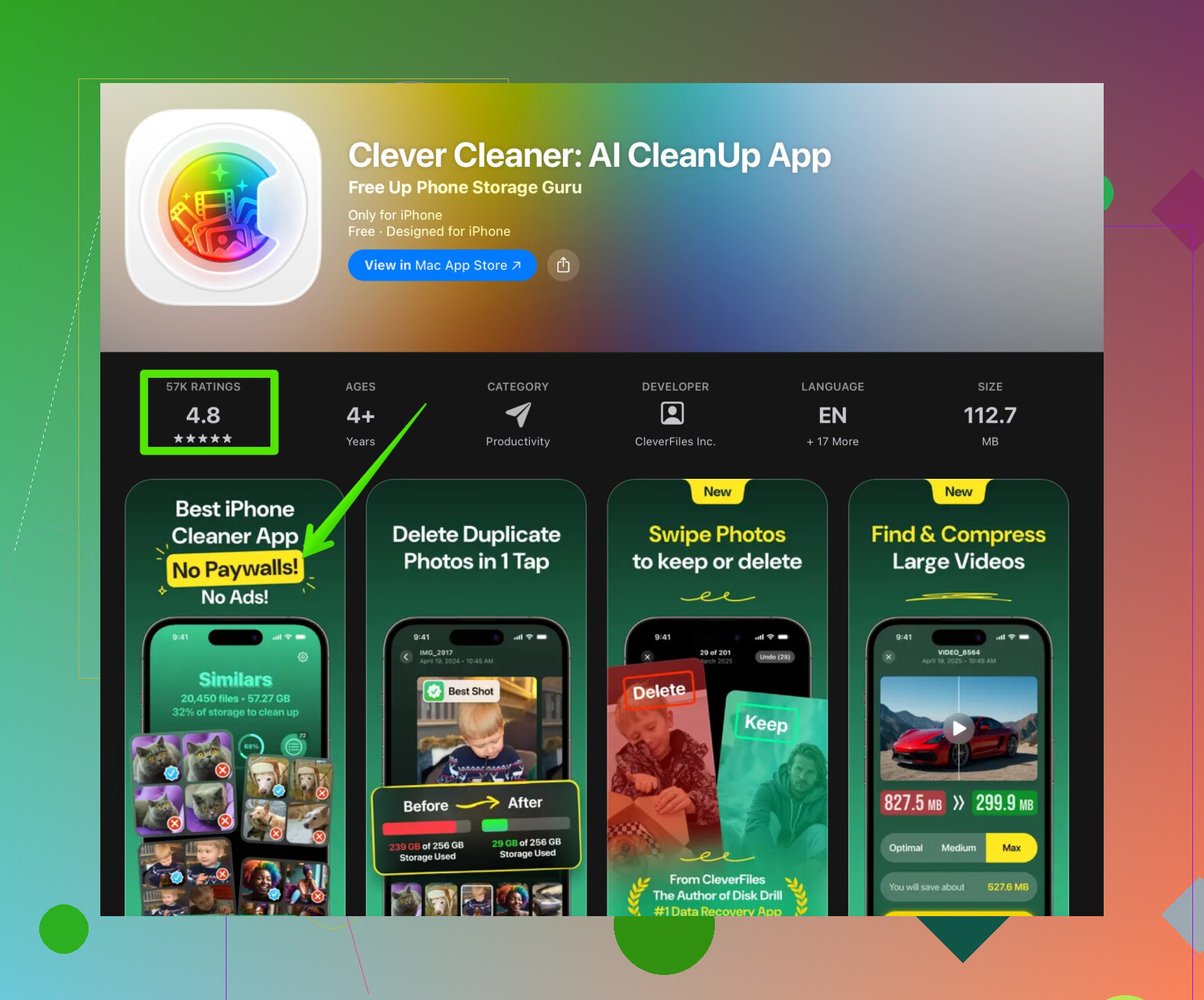
If your photos and junk files are a mess, try a cleaner tool. Something like the Clever Cleaner App helps remove duplicate photos, screenshots, and cache trash.
You can grab it here: clean up your iPhone storage fast. That kind of cleanup often fixes random lag.
- Check battery health and throttling
- Settings > Battery > Battery Health & Charging.
- If Maximum Capacity is under ~80%, or you see “Performance management” has been applied, iOS slows the phone to prevent shutdowns.
- If it is bad, only real fix is battery replacement.
- Update iOS
- Settings > General > Software Update.
- Install the latest stable version. Some iOS builds have ugly lag bugs that get patched.
- Offload heavy background stuff
- Settings > General > Background App Refresh. Turn this off for apps you barely use.
- Settings > Notifications. Turn off spammy ones.
- Settings > Siri & Search. Disable Siri suggestions for apps you do not care about.
- Clear Safari and app bloat
- Settings > Safari > Clear History and Website Data.
- For apps like Instagram, Facebook, TikTok, they build up huge cache. Remove and reinstall them if they feel slow.
- Turn off some visual effects
- Settings > Accessibility > Motion > Reduce Motion ON.
- Settings > Accessibility > Display & Text Size > Reduce Transparency ON.
These reduce GPU load on older iPhones a lot.
- Test in a “clean” state
- Force restart.
• Face ID models: Volume Up, Volume Down, then hold Power until logo.
• Home button models: Power + Home until logo. - If it still lags, try Safe Mode style test by deleting problem apps you installed around when lags started.
- Check temperature and network
- If the phone feels hot, it throttles. Remove thick case, avoid using while charging.
- Poor network sometimes feels like lag, especially in apps that wait for data.
- Last resort steps
- Reset all settings: Settings > General > Transfer or Reset iPhone > Reset > Reset All Settings. This keeps your data but fixes config weirdness.
- If it still acts up, backup to iCloud or Finder, then “Erase All Content and Settings” and set up as new for a day. If the lag disappears as new, your old backup has junk or a corrupt app config.
- When to suspect hardware
- If you see random reboots, graphic glitches, or it freezes in basic menus, even after a clean restore, it points to hardware, like storage or memory issues. Then Apple Store or repair shop time.
I had a 64 GB iPhone that lagged like crazy once it hovered around 1–2 GB free. After wiping out old WhatsApp media and running a cleaner to remove duplicates and trash photos, plus turning off some animations, it went from freezing while typing to smooth again. Your issue sounds similar to that storage plus background clutter mix.
My iPhone keeps freezing and lagging randomly, even when I’m just texting, browsing the web, or opening simple apps. I’ve already tried restarting it and closing background apps, but it’s still slow and stuttery, and the performance issues haven’t gone away.
@andarilhonoturno covered a lot of the basics already, so I’ll try not to repeat the same checklist. A few extra angles you might want to look at:
-
Spot a single “problem app”
Sometimes it’s not the whole system, it’s one crappy app:- Notice if the freeze usually happens after using a specific app (keyboard apps, VPNs, social media, some dodgy game, etc.).
- Temporarily delete that app for a day and see if the random lag drops a lot.
- Same for third‑party keyboards. Switch back to the default iOS keyboard and test.
-
Check iCloud / Photos sync hammering your phone
If you recently:- Switched phones
- Turned on iCloud Photos
- Joined a big shared album
your phone can feel like mud while it’s indexing and syncing. - Go to Photos and let it sit plugged in on Wi‑Fi for a while.
- In Settings > Your Name > iCloud > Photos, see if it’s still “Updating…” or “Uploading…”.
When that background indexing is done, performance often improves a ton.
-
Keyboard & text lag specifically
Since you mentioned texting:- Settings > General > Keyboard: turn off things you don’t need (Predictive, Smart Punctuation, etc.) just to test.
- If you’re using some fancy keyboard app, remove it and use default for a bit.
Text lag is often a keyboard / dictionary / prediction issue more than “phone is dying.”
-
Focus on system analytics instead of guessing
Go to:- Settings > Privacy & Security > Analytics & Improvements > Analytics Data
You don’t have to understand every log, but: - If you see the same app name repeated with “JetsamEvent” or similar, that app is crashing the system memory-wise.
- Lots of “panic” logs can hint at deeper hardware issues.
- Settings > Privacy & Security > Analytics & Improvements > Analytics Data
-
Disagreeing a bit on cleaners
@andarilhonoturno mentioned a cleaner tool and, yeah, storage cleanup can help a lot if your device is stuffed. I’d just be careful with “miracle cleaner” expectations. iOS is pretty good at managing its own cache. Where a tool can help is with ugly stuff like duplicate photos and junk media you forgot existed.In that context, something like the Clever Cleaner App can be genuinely useful for:
- Finding duplicate or near-duplicate photos
- Clearing out useless screenshots, blurred pics, and similar clutter
- Freeing up space without you manually hunting every album
If you want to speed things up by freeing storage in a less painful way, check out smart tools to clean up your iPhone storage. Just don’t expect it to magically fix a dying battery or faulty hardware.
-
Check for weird profiles or VPN stuff
- Settings > General > VPN & Device Management
If you see any configuration profiles you don’t recognize (old work profile, random “Wi‑Fi helper,” ad‑blocking profile, etc.), remove them and reboot.
Some VPNs and profiles can cause systemwide sluggishness and weird hangs when they misbehave.
- Settings > General > VPN & Device Management
-
Spotlight and Siri indexing
If you recently updated iOS or restored from backup, spotlight indexing can cause random lag:- Go to Settings > Siri & Search
- Temporarily disable “Show in Search” and “Show Content in Search” for non-essential apps.
That lightens the indexing load a bit and can smooth things out.
-
Hardware test at home
Before assuming it’s “just old”:- Plug into a computer with Finder (macOS) or iTunes (Windows).
- Make a backup.
- Use the “Restore iPhone” option and, for testing, set it up as New iPhone (no backup restore) and install only 1–2 basic apps.
Use it like that for a few hours: - If it’s still freezing and lagging in that super clean state, you’re probably staring at hardware issues (storage or RAM-related).
- If it’s smooth, then something in your old setup (apps, data, settings) is the culprit.
If you share which iPhone model and iOS version you’re on, plus if the lag happens more on Wi‑Fi, data, or offline, it’s easier to narrow down whether this is “phone is just old,” “software glitch,” or “one evil app ruining everything.”
First thing: don’t assume the phone is “just old” yet. Random freezing during light tasks usually means something specific is choking the system.
Here are angles that weren’t really touched by @andarilhonoturno, plus a different take on a couple of things they said.
1. Check storage health, not only free space
People look at “X GB free” and think they’re safe. The real problem is how the storage is being used.
- If your storage is over ~85–90% full, iOS can slow to a crawl during simple tasks because it is constantly juggling system data.
- Go to Settings > General > iPhone Storage and look at:
- “System Data” size. If it is absurdly huge (dozens of GB on a small-capacity phone), that can point to log buildup or corrupt caches.
- Apps with massive “Documents & Data.”
If “System Data” is suspiciously big, drastic fixes like backup → full restore via computer often do more than any minor tweak.
2. Background refresh and notifications overload
Instead of only hunting for a single “bad app,” look at how many apps are allowed to wake up in the background.
Try this for a couple of days:
- Settings > General > Background App Refresh:
- Turn it off globally, then selectively enable only the few apps that genuinely need it (messaging, maps, maybe mail).
- Settings > Notifications:
- Disable notifications for noisy apps: shopping, games, social platforms you barely use.
- Each push can trigger small spikes in CPU / network / UI work. A lot of them adds up to lag.
This especially helps older iPhones and small-capacity models.
3. Thermal throttling and case issues
Random lag while doing simple stuff can be thermal, especially if:
- The phone feels hot near the camera area.
- You are using a thick case or charging while using it.
A few experiments:
- Use the phone for 20–30 minutes without a case, no charging, in a cool room.
- If performance is suddenly smoother, you are probably hitting thermal throttling with your usual setup.
If that is the case, avoid gaming or heavy use while charging, and consider a thinner or more breathable case.
4. Focus on network-related slowdowns
A lot of people misread network delay as “phone lag,” especially in messaging and simple apps.
Test in these conditions:
- Airplane Mode on, Wi‑Fi off:
- Just open Settings, Photos, Notes, Camera, and scroll around.
- If everything is smooth offline but stuttery on Wi‑Fi or mobile data, then:
- Try disabling Wi‑Fi Assist (Settings > Cellular).
- Temporarily remove VPNs and DNS filter apps.
- Reset Network Settings (Settings > General > Transfer or Reset iPhone > Reset > Reset Network Settings).
@andarilhonoturno already mentioned VPN and profiles, which is good, but I would add: some “security” or “accelerator” apps can hook into network traffic and make everything feel glitchy.
5. Face ID / Touch ID and lock-screen lag
Some freezes actually happen around unlocking:
- If the lag spikes right after waking the phone or right as you swipe up to go home, test with:
- Different wallpaper (simple static image, not a Live or dynamic one).
- Removing complicated widgets from the lock screen and home screen.
Widgets that constantly refresh (e.g., news, fitness, heavy weather widgets) can cause frame drops during very basic gestures.
6. About cleaning apps and Clever Cleaner App
I slightly disagree with the idea that you should fully rely on iOS to manage all clutter. Yes, it is decent, but:
- It does not clean your ugly duplicate photos, useless videos, old screen recordings or ancient memes stacked in chats.
- It ignores a lot of “I forgot this existed” stuff that still eats storage.
Here is where something like the Clever Cleaner App can be genuinely handy, as long as expectations are realistic.
Pros of Clever Cleaner App:
- Quickly finds duplicate or nearly duplicate photos so you do not manually compare thousands of shots.
- Helps clear blurry photos, accidental screenshots and throwaway media.
- Can free many GB of space with minimal effort, which often makes iOS less stuttery if your phone was near full.
Cons of Clever Cleaner App:
- It is not magic: will not fix a failing battery, dying NAND, or bad RAM.
- You must check what it suggests deleting, or you might remove photos you actually care about.
- If you already have plenty of free space, the performance impact may be small.
So I like tools like that as part of the approach, not a silver bullet.
7. Deep software refresh without wiping everything
Instead of jumping straight to a full “set up as new” restore, try a lighter but still serious reset:
- Backup to iCloud or computer.
- Settings > General > Transfer or Reset iPhone > Reset > Reset All Settings.
- This keeps your data, but resets system-level preferences, keyboard dictionaries, Wi‑Fi, etc.
Sometimes corrupted settings or configuration junk causes weird lag, and this is milder than a full erase.
If that changes nothing, then the full restore + test-as-new route that @andarilhonoturno described becomes more compelling.
8. When to suspect hardware
If all of this fails, and especially if you notice any of these:
- Random reboots.
- Screen briefly goes blank or shows weird colors before recovering.
- Analytics logs full of “panic-full” entries (they mentioned this, and it really matters).
- Massive lag even in Airplane Mode and in basic offline apps after a full clean restore.
Then you are probably outside the “just software” problem. Storage wear, failing RAM, or even power-related logic board issues can cause stuttering that no setting will fix.
At that stage, a diagnostic at an Apple Store or authorized repair shop is the only meaningful next step.
If you can share which exact iPhone model, how much free storage, and whether it lags just as badly in Airplane Mode with only stock apps, it is a lot easier to say whether you are in “optimize and clean up” territory or “time to think about repair or upgrade.”